The Inspector
The Inspector is a small window that follows your pointer and shows the pixels around it, zoomed in, with the colour of the one in the middle. Hold a key and it stays put, so you can copy the colour; hold another and it measures.
Showing and hiding it
- ⌃⌥⌘Z (Ctrl+Alt+Shift+Z on Windows), from any app, shows it and hides it again. Inspector in Optic’s menu shows it.
- Starting Optic yourself brings it up at the pointer. Started at login, Optic stays behind its icon.
- The editor and Preferences hide it when they open; the key brings it back over them.
- Preferences ▸ Inspector ▸ Escape hides it lets Esc hide it too.
Hidden, the Inspector reads nothing from the screen.
What it shows
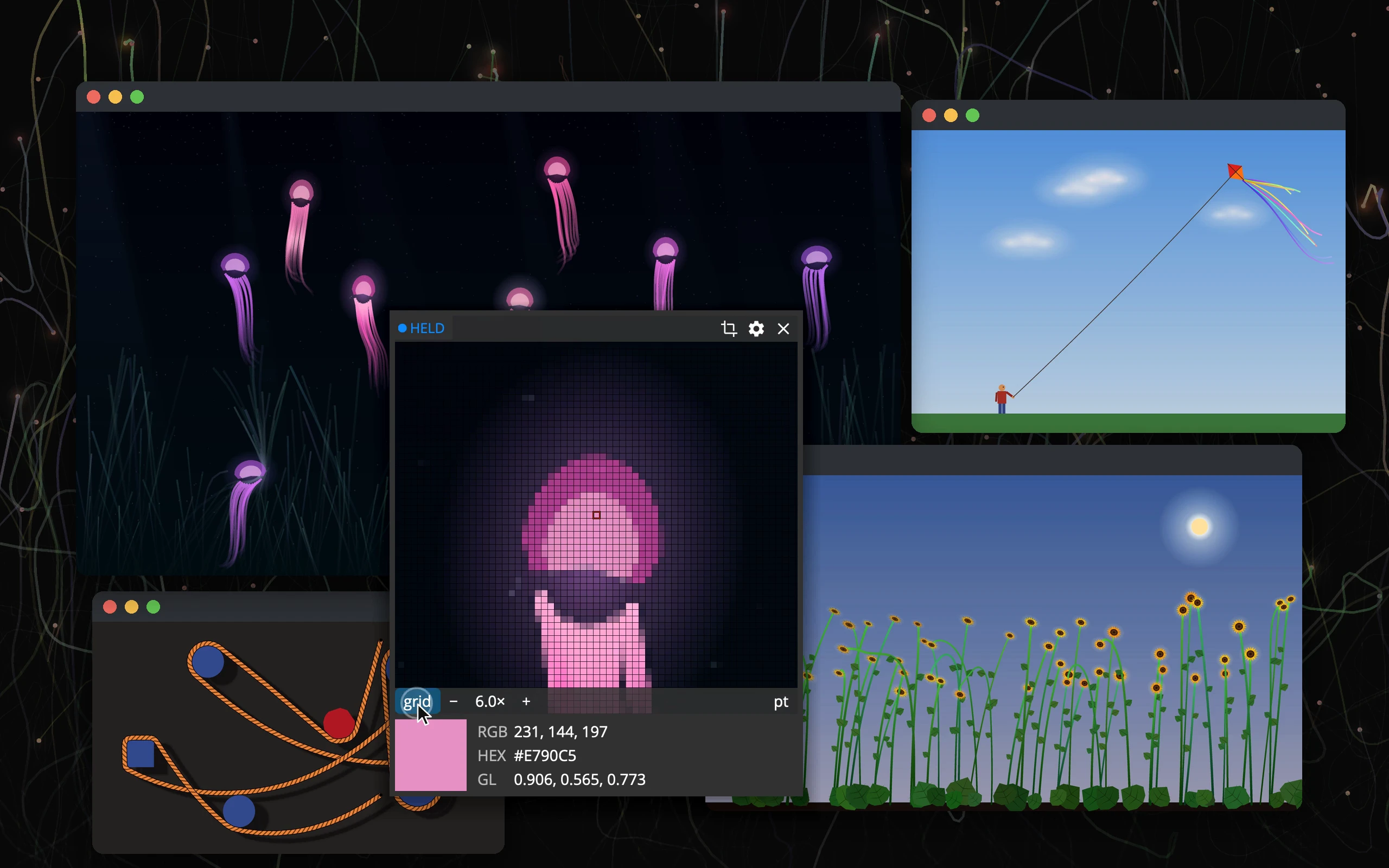 123456
- 1The zoom: the pixels around the pointer
- 2The picked pixel: framed in red, in the middle
- 3Capture, Preferences, hide: reached with Ctrl held
- 4Grid and zoom: grid, −, the zoom, +
- 5pt / px: points or real pixels
- 6The colour: click a row to copy it
- The zoom shows the pixels around the pointer, each as a sharp square. The one in the middle, framed in red, is the picked one.
- The colour of the picked pixel shows as a swatch and as RGB (
231, 144, 197), HEX (#E790C5) and GL (0.906, 0.565, 0.773). You can change these formats and add your own in Preferences. - A badge at the top left says what the Inspector is doing: HELD, FROZEN, MEASURING or CAPTURE.
The Inspector sits beside the pointer, moves to the other side near a screen’s edge, and stays on the monitor the pointer is on.
The keys you hold
| Hold | What happens |
|---|---|
| ⌃ (Ctrl) | HELD: the Inspector stops following, so you can move onto it and click |
| ⌥ (Alt) | MEASURING: measures from where you pressed it |
| ⇧ | FROZEN: freezes the screen, so menus and tooltips stay put while you look |
The Inspector never takes the keyboard from the app you are in; it only listens for these keys. A key counts once it has been held a moment, and while ⌘ is down nothing counts, so your app’s shortcuts don’t set it off.
Copying a colour
- Point at the pixel.
- Hold ⌃: the Inspector stays put.
- Move onto it and click a row, such as HEX. The value is copied as text, and the row says copied.
Zoom and grid
With ⌃ held and the pointer on the Inspector, a strip appears under the zoom:
- − and + step the zoom from 2× to 60×; the wheel over the zoom changes it smoothly. It starts at 10×.
- grid draws lines between the pixels. A click on the zoom does the same.
- pt / px switches between points and real pixels.
The strip above the zoom has Capture (an area capture, with the Inspector as its magnifier), Preferences and × to hide the Inspector.
Drag the Inspector’s edges, with ⌃ held, to make it larger, up to 1200 points. Its size, zoom, grid and unit are remembered.
Points or pixels
- Points, to start with: each square is one point, as large as things look. Its colour is the pixel at the point’s centre.
- Pixels: each square is one real pixel of the screen. On a Retina screen, you see every one.
The same switch decides how captures are taken; see Capturing.
Measuring
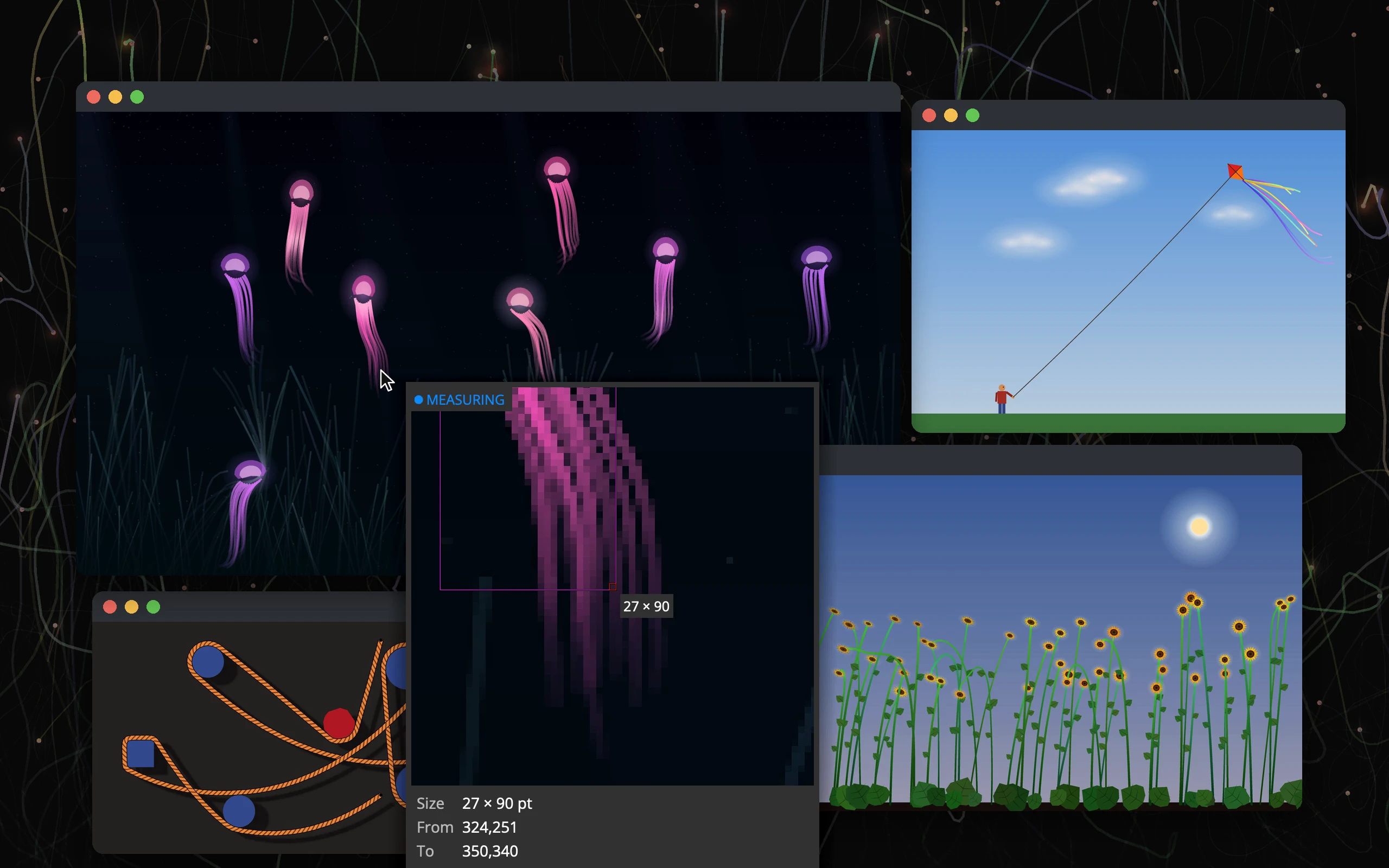 1234
- 1MEASURING
- 2The measured area: from where you pressed ⌥ to the pointer
- 3Its size
- 4Size, From and To: in points or pixels
- Point at one corner of what you want to measure.
- Hold ⌥ and move the pointer to the other corner.
- The Inspector shows the rectangle, its size beside it, and below Size (such as
27 × 90 pt), From and To.
Both corner pixels are counted. Release ⌥ and the measurement ends; hold ⌃ as well to keep it on screen while you read it. Coordinates count from the top left of the main display.
Good to know
- On a Mac the colours are read as sRGB, 8 bits per channel. On Windows they are read as the desktop shows them.
- The pointer never shows in the zoom, and the Inspector never shows in its own zoom.
Inspector preferences
| Setting | What it does | To start with |
|---|---|---|
| Units | Points or Pixels, for the zoom, measuring and captures | Points |
| Width, Height | The window’s size | 260 × 348 pt |
| Distance | How far from the pointer it sits | 24 pt |
| Escape hides it | Esc hides the Inspector | No |
| Formats | The colour rows: a name and a pattern each, with ▲ ▼ to order them, × to remove, Add format for more | RGB, HEX, GL |
A pattern is text with placeholders: {R} {G} {B} for red, green and blue from 0 to 255, {HR} {HG} {HB} for the same in hex, and {GR} {GG} {GB} for the same from 0 to 1. Hex comes in capitals (ABC) or small letters (abc), and the 0 to 1 values with as many decimals as you choose, 3 to start with. A grey preview shows each format on the colour you picked last. rgb({R}, {G}, {B}) gives a CSS colour, for example.