Archives
In Commander an archive is a folder. Enter goes inside, an archive inside it opens the same way, and you view, copy and search there with the usual keys. A zip can also be changed in place, and Pack and Extract make and unpack archives in one go.
Going inside
- Enter on an archive goes inside it. Backspace at its top comes back out.
- Nested archives open the same way, as deep as they go: a tar.gz inside a zip inside an ISO.
- On your disk, an archive is recognised by its content, so a renamed file still opens. Inside another archive, by its name.
- Documents that are zips inside, such as
.docx,.xlsx,.pptx,.odt,.epub,.pagesor.key, open in their app with Enter. Open as Archive ⇧Enter goes inside instead.
A slow archive shows Reading… at once, and Backspace leaves before it has finished.
Formats
| Format | Endings | Read | Write |
|---|---|---|---|
| ZIP | .zip .jar .war .ear .apk | ✓ | ✓ changed in place, and Pack |
| 7z | .7z | ✓ | Pack makes new ones |
| tar.gz | .tar.gz .tgz | ✓ | Pack makes new ones |
| Other tars | .tar, .tar.bz2, .tar.xz, .tar.zst, .tar.lz4, .tar.br, .tar.lzma, .tar.Z and their short forms | ✓ | |
| One compressed file | .gz .bz2 .xz .zst .lz4 .br .lzma .Z | ✓ as a folder holding the file | |
| RAR | .rar .cbr, versions 1.5 to 5 | ✓ | |
| Disk images | .iso, SquashFS (.sqfs .appimage) | ✓ | |
| Packages | .deb .rpm .a, .cab .msu | ✓ | |
| Older formats | LHA (.lzh), ARJ | ✓ |
Not supported: archives split into parts (.part01.rar, .7z.001), self-extracting .exe files, DMG and MSI, and ARC, ZOO and ACE.
Inside an archive
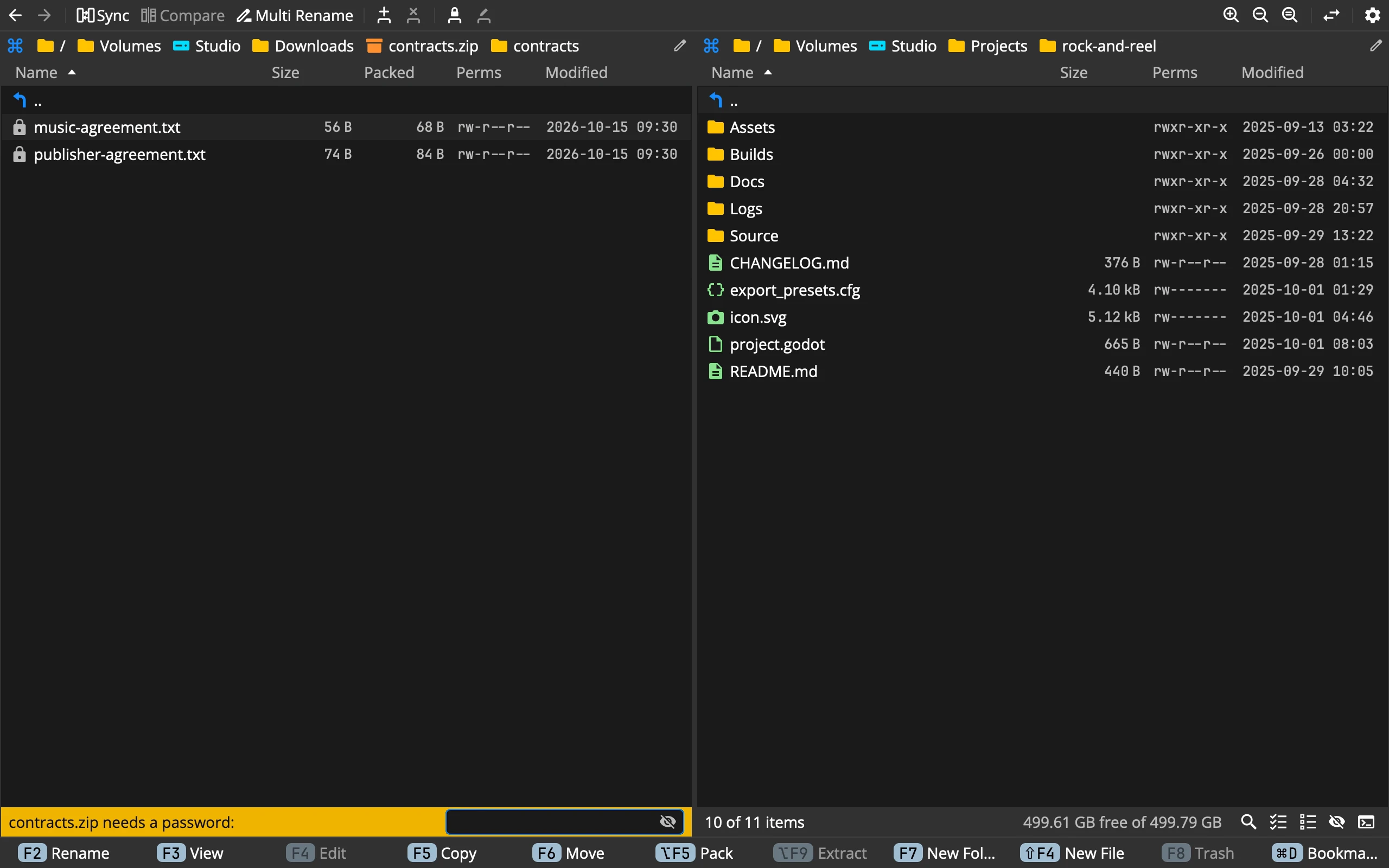 12345
- 1The path: goes through the archive like through a folder
- 2Size and Packed: how big, and how big inside the archive
- 3Locked items: a padlock in place of the icon
- 4The password: asked in the status bar when it is needed
- 5Pack and Extract
A zip and most other archives show Size and Packed: how big a file is, and how much room it takes in the archive. Tars have no Packed column. A folder’s Packed is the sum of what is in it.
Most commands work as in a folder: View, Copy, Detail (its Overview), Compare Files, Find Files and Compute Size. Opening a file with Enter doesn’t, except a picture, which opens in the viewer; copy a file out to open it in its app.
Passwords
Zip (ZipCrypto and AES), 7z (AES) and RAR archives can be locked.
- Usually only the contents are locked. The names show, locked files wear a padlock, and the password is asked only when the bytes are needed: to view, copy, extract or compare. Renaming and deleting never need it.
- When the names are locked too, as in many 7z and RAR archives, the password is asked as soon as you go in.
- The question is in the status bar: contracts.zip needs a password:. A wrong one says Wrong password for contracts.zip.
- The password is remembered while the archive is open in any panel, tab or task, and forgotten when you leave it. It is never saved.
Extract
Extract… ⌥F9 unpacks the whole archive under the cursor, or every selected archive at once. To take out only some files, go inside and copy them with F5.
- To: This folder (where the archive is) or Other panel. Preferences ▸ Archives ▸ Extract to sets which one is chosen first.
- Folder: When needed, Always or Never. When needed puts the contents into a new folder named after the archive, unless the archive already holds one folder of that name. The line under the choice says what will happen: It holds 312 items at the top, so they go into a new folder photos.
- Password, for zip, 7z and RAR, only if the archive needs one. Files it doesn’t open are listed as failed in the task, and the task window then offers a field and Unlock and retry.
Each archive is a task of its own, like a copy: progress, cancel, and the usual question when a name is taken.
Pack
Pack… ⌥F5 makes a new archive of the selection, or of the item under the cursor.
- Archive: its name. Commander suggests one: the file’s or the folder’s name, or the folder’s name for several items.
- Format: zip, 7z or tar.gz. The last one you used is chosen first.
- To: This folder or Other panel. The archive is made on a disk of this computer.
- Originals: Keep or Delete. Delete removes the originals only once the archive is complete.
- Encrypt: No or Yes, with Password and Verify.
- A zip gets AES-256. Its names stay readable, and the Finder and Explorer can’t open it; 7-Zip, Keka, The Unarchiver and WinRAR can.
- A 7z gets AES-256 with the names hidden too.
- A tar.gz has no password.
Folders go in whole, hidden files included, with their dates and permissions. A symlink can’t go into an archive and is listed as failed.
Pack never adds to an existing archive: a name already taken is refused. To add files to a zip, go inside it and copy them in with F5.
Changing a zip
Inside a zip you can copy and move files in, paste, drop, make new folders and files, rename, multi rename and delete permanently, and move files out. Other formats are read-only.
Every change writes the whole archive anew, so Commander asks first: This rewrites photos.zip (1.2 GB). Continue? A delete asks once for both: Delete 3 items permanently? Rewrites photos.zip. Preferences ▸ Confirmations ▸ Confirm a change inside an archive switches the question off.
How it works, and why it is safe:
- The new archive is written beside the old one and takes its place at the end. The file on disk is always the whole old archive or the whole new one, even if the computer goes down in the middle.
- Everything the change didn’t touch is carried over byte for byte, encryption, dates and comments included.
- A move out of a zip removes the files from it only once they have arrived.
- A cancelled copy into a zip keeps what had finished.
- There has to be room on the disk for a second copy of the archive while it is written.
In a zip under a password, you can add, rename and delete without the password; what you don’t touch stays encrypted. Files you add go in unencrypted: only Pack makes encrypted archives.
Files of 4 GB and more, and archives past 4 GB or 65,535 files, are written as zip64.
Speed and size
- A zip reaches each file directly, however big.
- A tar has no index: listing it reads it through. Copying many files out of a tar, 7z or RAR takes one pass, not one per file.
- RAR reads each file whole into memory: viewing or copying a 4 GB file from a RAR takes 4 GB of memory.
- A nested archive is taken out of its parent once while you work in it: in memory up to 64 MB, in a temporary file beyond.
Good to know
- Find Files doesn’t look inside the archives it passes. Go into an archive first, then search it.
- Archives on servers don’t open in the panel; copy them down first.
- An archive you change outside Commander while it is open is read again.
- On Windows, an archive Commander has just read stays open for up to five seconds, and can’t be deleted meanwhile.
Tips
- Look before you unpack: Enter on the archive, F3 on a file.
- Take one file out: go inside, select it, F5.
- Send files as one attachment: select them, ⌥F5, zip. With Encrypt, choose 7z if the names must stay private too.
- Fix one file in a zip: copy the new version in with F5 and choose Overwrite. The rest of the archive stays as it was.