Preferences
Preferences… ⌘, opens the Preferences window, also from the gear at the end of the toolbar. Without a gear on either bar, the right panel’s status bar carries one.
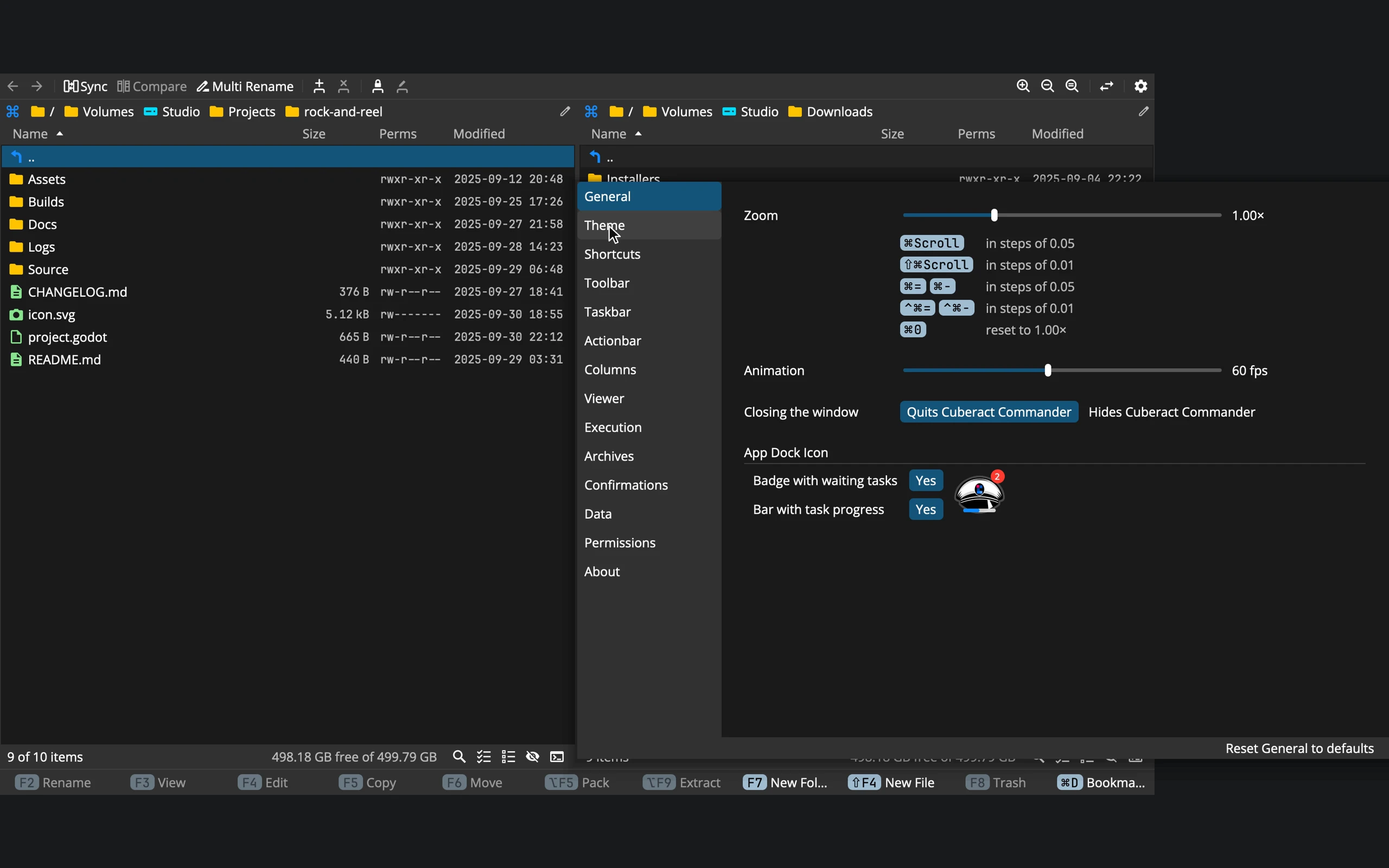 123
- 1Pages: ↑ and ↓ switch between them
- 2The page: every change applies at once
- 3Reset to defaults: this page only
- There is no Apply or OK. Every change applies at once, in every window, and is saved.
- Each page has its own reset, Reset General to defaults and so on, which leaves the other pages alone.
- The window is an ordinary one: put it beside the panels, or on another screen. Esc closes it, and it reopens on the page you left.
- Some menus lead straight to a page: Customize Toolbar…, Customize Actionbar…, Enter Licence… and Report a Problem….
Nothing here needs a restart. The pages, in order:
General
| Setting | Choices | To start with |
|---|---|---|
| Zoom | 0.20× to 3.00× | 1.00× |
| Animation: how smoothly the hourglass, graphs and pulses move | 10 to 120 frames a second | 60 |
| Closing the window (Mac) | Quits Cuberact Commander, or Hides it and tasks run on | Quits |
| Badge with waiting tasks (Mac) | The Dock icon counts tasks waiting for you | Yes |
| Bar with task progress (Mac) | A progress bar across the Dock icon | Yes |
Under Zoom are the other ways to zoom: ⌘ with the wheel, ⌘= and ⌘- in steps of 0.05, ⌃⌘= and ⌃⌘- in steps of 0.01, ⌘0 back to 1.00×.
Theme
The colours, fonts, icons and sizes of everything you see. Themes, toolbar and shortcuts describes it.
Shortcuts
Every command’s keys, to change as you like. See Themes, toolbar and shortcuts.
Toolbar
Show the toolbar, and which buttons it has, in which order, as icons or with words. See Themes, toolbar and shortcuts.
Taskbar
| Setting | Choices | To start with |
|---|---|---|
| Open the task window: a task you just started opens its window when it first needs you | Yes / No | Yes |
| Tasks shown one by one: beyond this, older tasks fold into one Group tile | 1 to 20 | 5 |
| Tasks kept: beyond this, the oldest finished tasks leave; a task where something failed stays | 10 to 100, or all | 50 |
| Auto-remove finished tasks from the taskbar: one switch for each kind of task | Copy, Move, Extract, Pack, Trash, Delete, Rename, Sync, New folder, file and link, Attribute | all No |
A task removes itself only if nothing in it failed or was skipped.
Actionbar
Show the actionbar, and which commands it has. See Themes, toolbar and shortcuts.
Columns
| Setting | Choices | To start with |
|---|---|---|
| Font ▸ Name: names in lists | Font / Monospace font | Font |
| Font ▸ Other columns: sizes, dates and the rest | Font / Monospace font | Monospace font |
Folders in brackets: [Docs] |
Yes / No | No |
| Kilobyte | 1000 B / 1024 B | 1000 B |
| Unit | kB / KB / KiB | kB |
| Largest unit | No limit / Gigabytes | No limit |
| Decimal places | 0 to 3 | 2 |
| Date format (the time is always 24-hour) | YYYY-MM-DD / DD.MM.YYYY / MM/DD/YYYY | YYYY-MM-DD |
| Preview size: pictures in the Preview column | 48 to 160 px | 72 px |
| Sorting ▸ Symlink: links to folders among the folders, or in a group of their own | Mixed / Grouped | Mixed |
| Sorting ▸ Archive: among the files, or above them | Mixed / Grouped | Mixed |
| Sorting ▸ Dot file: the leading dot ignored, or dot names first | Mixed / Grouped | Mixed |
The size settings apply to every size in the app: the Size column, the task window, the viewer and the free space. Preview cache shows how much room the pictures’ previews take (at most 500 MB, the oldest go first), with Clear. Folders always come before files.
Viewer
| Setting | To start with |
|---|---|
| Read a file again when it changes | Yes |
| Syntax highlighting | Yes |
| Line numbers, Wrap long lines, Show whitespace | No |
| Language by file type: the languages you chose in the viewer, each with a × to forget it | none |
| JSON formatting: Off, Simple or Smart, with an example | Smart |
| Reading column (Markdown) | No |
| Keep zoom between pictures | No |
| Enlarge small pictures to fit | Yes |
| Show name in full screen | Yes |
| Smooth when enlarged | Yes |
| Raw pixels at 1:1 | No |
| Checkerboard squares: behind transparent pictures | 20 px |
The switches in the viewer’s own status bar change the same settings. See Viewer.
Execution
- Text editor for F4: the system’s own, on a Mac and Linux one of the editors installed, or any app through Other application….
- Terminal for F9: on a Mac, one of the terminal apps; on Windows, Windows Terminal, Command Prompt, Windows PowerShell or PowerShell 7.
- Rules: which app opens which files with Enter, in the order they are consulted, each with a menu to change the app and a × to drop the rule. Rules are made in a file’s Detail ▸ Execute. All pictures is last, the viewer to start with.
See Editor, terminal and opening files.
Archives
What the Extract and Pack dialogs start with. The dialogs still let you choose.
| Setting | Choices | To start with |
|---|---|---|
| Extract to | This folder / Other panel | This folder |
| Extract to subfolder | When needed / Always / Never | When needed |
| Pack to | This folder / Other panel | This folder |
Confirmations
All on to start with:
- Confirm before delete: Move to Trash, Delete Permanently, and unmounting on Places.
- Confirm a change inside an archive: every change rewrites the whole archive.
- Confirm editing a binary file with F4.
- Confirm a drag and drop.
Overwriting has no switch here: a taken name is decided item by item in the task window.
Data
- Settings folder: a click opens it in a new tab.
- Log folder: the logs of the last 10 runs, at most 10 MB each. Clear deletes the earlier ones; a click opens the folder.
- Log: Normal, Detailed or Everything, applied at once. Normal is right unless support asks for more.
- Passwords (Mac): Keychain, to start with, or Settings file, sealed for this Mac. Switching moves every saved password.
Permissions
On a Mac: what macOS allows Commander, read without ever asking, each with Open System Settings. See macOS permissions.
Licence
The licence in force: who it is licensed to, its number and date. Enter licence takes a new one; paste it and press Register. While there is no licence, the page shows the trial’s state and Buy.
Report a Problem
Make Report puts the logs and, on a Mac, the crash reports into one zip, shown as a tile: drag it into an email, copy it, or click to see what is inside. Write Email opens a message to support@cuberact.com. Nothing is sent by itself, and the logs name files and servers, never a password.
About
The version, Check for Updates…, Release Notes, the website, and the Third-Party Licences of what Commander is made of.
Good to know
- The settings live in plain text files, in
~/.cuberact/commander/(%APPDATA%\Cuberact\Commander\on Windows).preferences.propertiescan be edited by hand while Commander is closed; it is read at the start. - To start over with default preferences, quit Commander and delete
preferences.properties; it is written anew. Deleting the whole folder would also take your bookmarks, servers, shortcuts, rules, themes and licence. - Not everything is a preference. What each tab shows (its folder, sorting, columns, hidden files), the panels’ layout and the window’s place are kept as you leave them, and no reset touches them.