Rename and Multi Rename
Rename in the row
Rename… F2 (or ⇧F6) turns the name under the cursor into a field, right in its row. The name is selected without its extension, so you can just type: in photo.jpg only photo is selected, in archive.tar.gz only archive. A name with no extension, or one starting with a dot like .gitignore, is selected whole.
- Enter renames, Esc leaves the name as it was. Clicking anywhere else leaves it too.
- ↑ and ↓ rename and go straight on to the row above or below, field open. Several names in a row, without touching the mouse.
- The usual text keys work in the field, ⌘Z included.
Rename works on the cursor, whatever is selected. The row shows the new name at once and the cursor follows it to its new place in the sort. The rename runs as a task, but a quiet one: it shows in the taskbar only if it asks something, fails, or takes longer than a second.
What a name can’t be
Commander refuses these before anything happens, and the field stays open with the reason in the status bar: . and .., a name with a slash (or a backslash on Windows, in archives and on servers), and a name another item in the folder already has.
Changing only the case, Photo.jpg to photo.jpg, works, also on disks that don’t tell the two apart.
If the name is taken by the time the rename runs, the task asks: Retry, Keep both (which adds copy to the name) or Skip. A rename never overwrites anything.
In archives, on servers, on Places
- A zip: Commander first asks This rewrites photos.zip (1.2 GB). Continue?, then opens the field. Other archives are read-only.
- Servers: renaming works the same as on your disk.
- Places: F2 renames a bookmark or a group; the label can be any text. On a Mac, renaming a tag renames it on every file that has it.
- Search results: refused, Not in a search’s results.
There is no undo for a rename; to go back, rename it again.
Multi Rename
Multi Rename… ⌃M (or ⇧F2) renames many items with one pattern. It takes the selection, or every item in the folder when nothing is selected, in the order the panel shows them. The new names are in the preview as you type, and nothing changes until you press Rename.
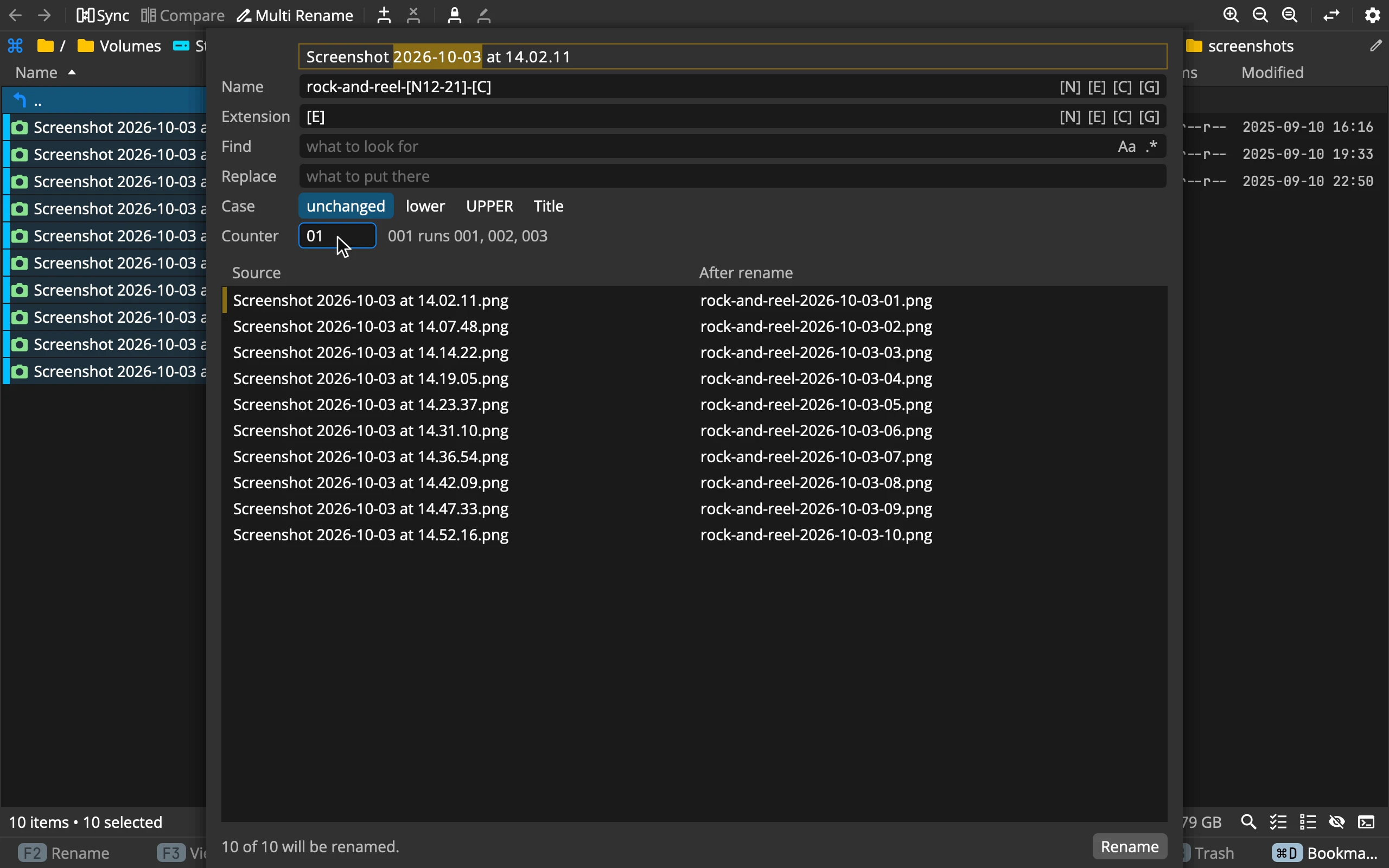 123456789
- 1Sample name: drag across it to take part of the name
- 2Name: the pattern of the new name
- 3Extension: the pattern after the dot
- 4Tokens: click one to put it in
- 5Find and Replace: with Match case and Regular expression
- 6Case: unchanged, lower, UPPER or Title
- 7Counter: the first number, as it should look
- 8Preview: every old name beside its new one
- 9Rename: what will happen, and the button
Building a name
Name and Extension each hold a pattern: text you type, mixed with tokens in square brackets. They start as [N] and [E], which keep the names as they are. The tiles at their right put a token in where the caret is.
| Token | Becomes |
|---|---|
[N] |
The name without its extension |
[N3] |
The 3rd character of the name |
[N3-7] |
The 3rd to the 7th character |
[N3-] |
From the 3rd character to the end |
[E] |
The extension, without the dot |
[C] |
The counter |
[G] |
A random unique id (a UUID) |
- Tokens work in either field, and in lower case too:
[n]is[N]. - Anything else in brackets stays as typed:
[draft]is just text, and[[C]]gives[1]. - The extension and the dot are kept apart: an empty Extension leaves the names without one. Two-part endings like
tar.gzcount as one extension. - A folder has no extension: its whole name is
[N]. A typed extension would be added to folders too, so select only files when you change extensions.
Taking part of a name
Counting characters is not needed. The band at the top shows one name letter by letter. Drag across the part you want, and the right [N…] token goes into the field you were in. With the caret inside a token already, the drag changes that token as you go. Click a row in the preview to use its name as the sample.
The counter
Type the first number exactly as it should look: 1 counts 1, 2, 3; 001 counts 001, 002, 003; -01 counts -01, 00, 01. It goes up by one for every item in the order the panel shows them, items whose name doesn’t change included. Sort the panel first, by date for example, to number in that order.
Find and Replace
Find looks for text in each new name and Replace puts its own text there, every time it is found. They work in the name and the extension separately, never across the dot between them, so replacing . with _ turns my.file.txt into my_file.txt.
- Case doesn’t matter unless Aa (Match case) is on.
- With .* (Regular expression) on, Find is a regular expression and Replace can use its groups:
$1is the first group,$$a dollar sign. A pattern with an error shows the error above the preview.
| Find | Replace | Before | After |
|---|---|---|---|
img |
photo |
IMG_1.jpg |
photo_1.jpg |
^(\d+) - (.+)$ |
$2 ($1) |
01 - Adiemus.mp3 |
Adiemus (01).mp3 |
\s*\(\d+\)$ |
report (2).pdf |
report.pdf |
The last two need Regular expression on.
Case
lower and UPPER change the whole name, extension included. Title starts every word with a capital and lowers the rest, and leaves the extension alone: don't stop.mp3 becomes Don't Stop.mp3. Case is applied last, after everything else.
The preview
Every row shows the old name and the new one, exactly as they will be:
- Grey: the name stays the same, and the item is left out.
- Red, (taken): another item already has that name, or two rows want the same one.
- Red, (not a name) and similar: the new name can’t be used, for example empty or with a slash.
Names that move along a chain, 02 to 03 while 03 goes to 04, or that swap places, are fine. The line at the bottom says how many will be renamed, and how many keep their name. While anything is red, Rename stays off: 2 new names are taken.
Running it
Rename (or Enter) closes the dialog and starts a Rename task. Names that are already free go first, so chains and swaps work out without questions. A row that fails doesn’t stop the others, and has Retry in the task window.
Each field remembers its last ten patterns: ↓ in a field, or the ⌄ at its end, brings them back. The switches and Case start fresh every time.
Inside a zip, the whole batch is one rewrite of the archive. Multi Rename doesn’t work in search results or on Places.
Recipes
- Number photos by date: sort by Modified, select them, Name
holiday_[C], Counter001. - Change extensions: select the files, type the new one into Extension, say
jpg. Leave it empty to remove extensions. - Everything lower case: Case lower. The extension follows.
- Remove a “(2)” from names: Find
\s*\(\d+\)$with Regular expression on, Replace empty. - Keep the date from a name: drag across the date in the sample, then add your text around the
[N…]token. - Shuffle the order: rename to
[G]first, then topic_[C]sorted by name.