Git
Commander shows what git knows about your files in three places. The Git column marks what changed, folder by folder. Changed in git in Find lists every change of a repository in one panel. And Git History ⇧⌘H puts any two versions of a file side by side.
It’s what I reach for after a session with an AI agent: see what it touched, then read it.
How Commander talks to git
- Commander runs the git you have installed, and only reads. It never stages, commits or checks out anything, and doesn’t even touch git’s index.
- A repository is the nearest folder above with a
.git. Worktrees and submodules work too. - It works in folders on your computer, not inside archives or on servers.
- No git installed? See When git is missing.
The Git column
Right-click the column header and pick Git. Like every column, it belongs to the tab (Columns).
- A file shows one square, for its change.
- A folder shows a square for each kind of change anywhere below it, deleted files included.
- A clean file or folder shows nothing.
- Point at the squares for the words: Modified, New, not in git yet, Renamed from old.gd, Conflict, Ignored, or for a folder 2 modified, 1 new, 1 deleted. Staging is said in words only: Modified, staged, Modified, partly staged.
| Square | Means |
|---|---|
| Yellow | Modified, a rename too |
| Green | New: not in git yet, or added |
| Red | Deleted, on a folder (a deleted file has no row) |
| Orange | In conflict |
| Grey | Ignored by git, and everything in an ignored folder |
The colours are your theme’s, in its Git group. Sorting by the column puts conflicts first and clean rows last.
The column follows git by itself: when something in the folder changes, when a commit, a stage, a checkout or a reset moves git’s index or HEAD, and when you come back to the window. A file edited deep below the folder while Commander is in front shows once you come back to it.
Changed in git
In Find Files ⌘F, set Changed in git to Yes, and the search lists what git says changed in the folder and everything below it, instead of reading every file.
- Leave Name and Content empty for every change. Fill them in to narrow it down:
*.mdlists the changed Markdown files, and Content searches the changed files as they are on your disk. - Deleted files are listed too. A name pattern can match them, a content search can’t, as there’s nothing on the disk to read.
- Files git ignores aren’t listed.
- The choice is back to No every time the dialog opens. It’s greyed outside a repository (Not in a git repository) and inside archives or on servers (Not a folder on this computer).
In the results:
- The path shows Git changes, or Git changes · *.md when a name narrows it.
- The Git column is always shown, whatever columns the tab has.
- The list follows git. Commit or stage something and it catches up within a second; a file you edit shows once you come back to the window.
- The rest works as in any search’s results: Enter goes to the file’s folder, F3 views it, and Git History opens on a result. See Find Files.
Git History
Git History ⇧⌘H, also in the row’s menu, shows the file under the cursor at its revisions, in the Compare Files window, titled Git History then. It works for a file on your computer, in a folder or in search results. Outside a repository the status bar says Not in a git repository.
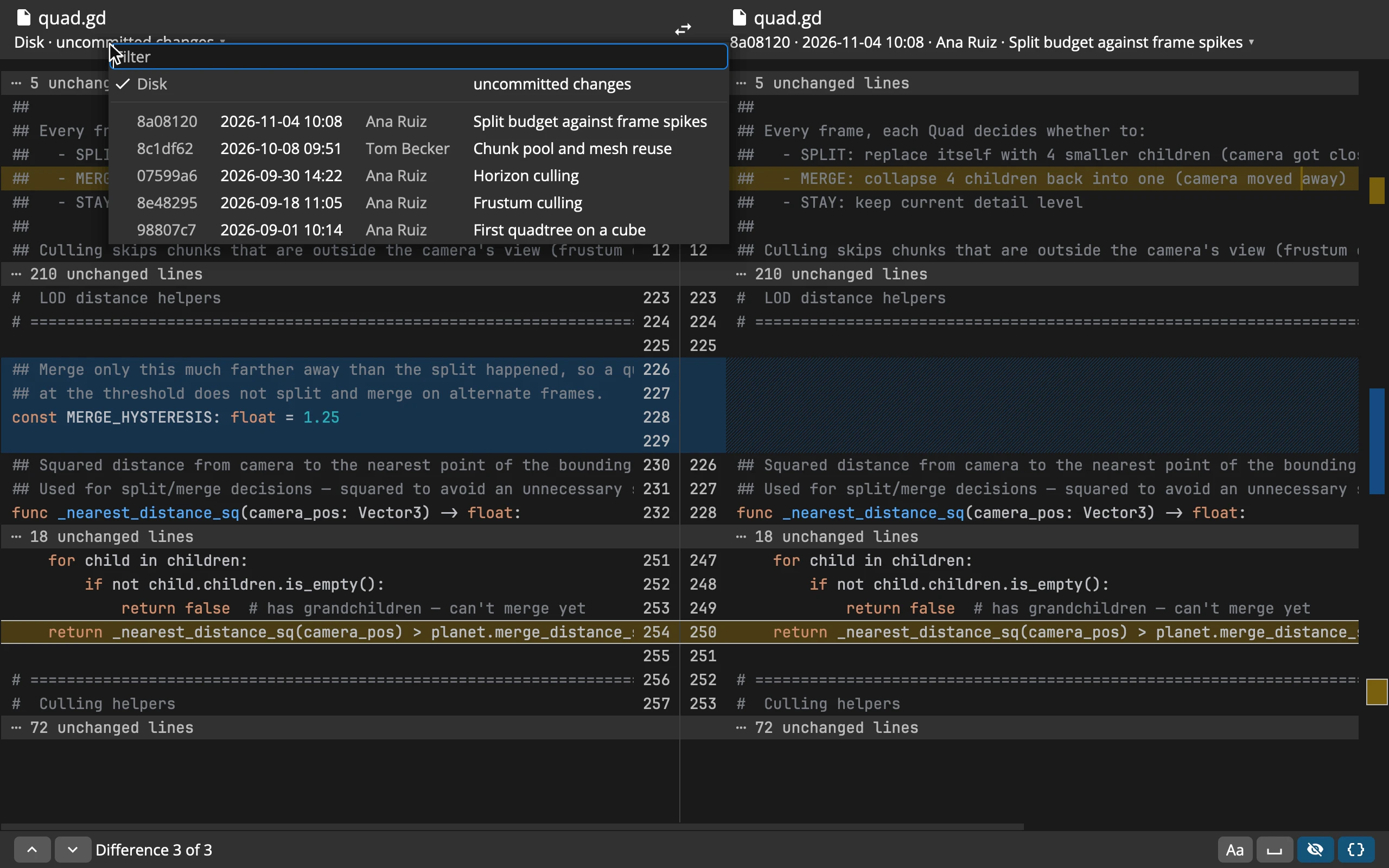 12345
- 1Left revision: click for the list
- 2The list of revisions: the disk first, then every commit; type to filter
- 3Right revision
- 4Differences: previous, next, and which one of how many
- 5Switches: Ignore Case, Ignore Whitespace, Fold Unchanged Lines, Syntax Highlighting
- It opens with the file on your disk on the left and its last commit on the right. When the disk has nothing new, the right side goes one commit further back, so there is always something to see.
- Each side is a revision: Disk (Disk · uncommitted changes when it differs from the last commit, Disk · deleted when the file is gone), Staged (what git’s index holds, offered when it differs from both), any commit that changed the file, or Not in git yet for a file without a commit.
- Click either side’s revision for the list: the disk and the index first, then every commit with its short hash, date, author and subject. Type to filter it, by any of them or the full hash.
- ⌥↓ Older Revisions and ⌥↑ Newer Revisions move both sides a step, keeping the distance between them.
- Renames are followed, so the history goes back past the file’s old name.
- The disk side is read again when the file changes, and git is asked again when you come back to the window, so a commit made elsewhere shows up.
Everything else is Compare Files: the colours, folding, F7, Find and Copy work the same.
When git is missing
Where git is needed and isn’t installed (Git History, Changed in git, turning on the Git column), a window says Git is not installed:
- On a Mac, Install Command Line Tools starts Apple’s installer. Git comes with the Command Line Tools.
- On Windows and Linux, Download Git opens git-scm.com’s download page.
Commander looks for git again the next time it’s needed, so there’s no need to restart. It finds git where installers put it: the Command Line Tools, Xcode, Homebrew and MacPorts on a Mac, Git for Windows’ own folder, and your PATH.
Good to know
- Git History shows the current branch’s history. Other branches, blame and anything that writes to git aren’t Commander’s job.
- The Git column and Changed in git see what
git statussees, so files git ignores stay out of Changed in git and show grey in the column.