The window
At a glance
Point at a row of the list to see where that part is.
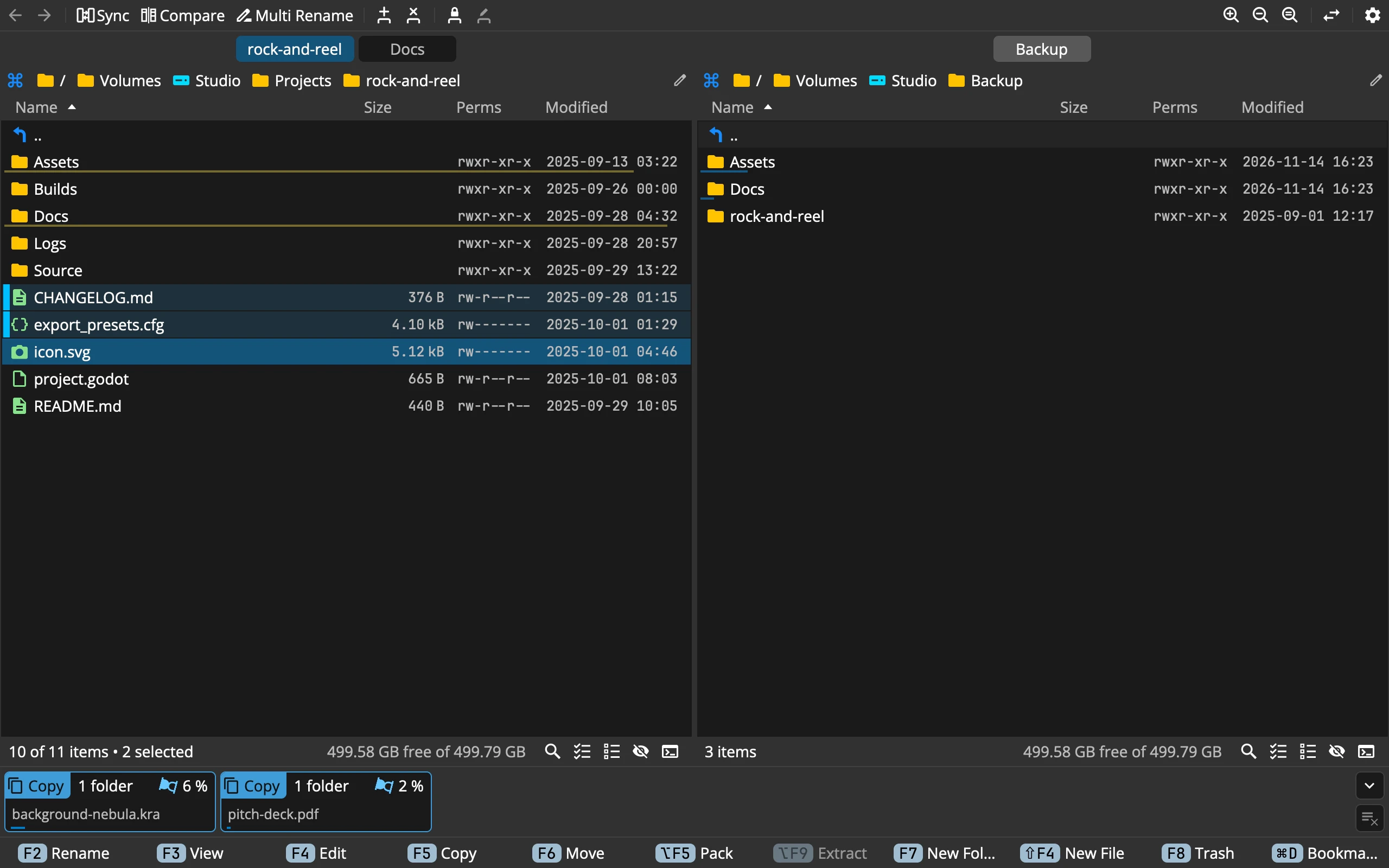 123456789
- 1Toolbar: your buttons, for the active panel
- 2Tabs: each one a folder of its own
- 3Path: every step of the way, a click away
- 4Column header: click to sort, right-click to choose columns
- 5List: the cursor and the selected items
- 6Status bar: counts, free space and what Commander has to say
- 7The other panel: where a copy or a move goes
- 8Taskbar: the tasks running in the background
- 9Actionbar: a button per command, with its key
From the top: the toolbar, two panels side by side, the taskbar and the actionbar. Each panel has its tabs, its path, the column header, the list of items and a status bar.
Two panels
One panel is active: its cursor is in colour, the other panel’s is grey. Click into a panel, or press Tab, to make it the active one. Commands work in the active panel, and copy and move go into the other one.
- Drag the line between the panels to make one wider. Double-click it for half and half again.
- Drag it all the way to an edge and that panel folds away. A click on the bar left behind brings it back.
- Swap the Panels ⌘U swaps them, tabs and all.
The first time, the left panel opens your home folder and the right one Places.
Toolbar
The toolbar holds buttons for the commands you want at hand. To start with: Back and Forward, Sync, Compare and Multi Rename, the tab buttons, zoom, Swap and Preferences.
- A button’s tooltip gives the command’s name and key, and when it is greyed, the reason why.
- Buttons that don’t fit go under ⋯ at the end.
- Right-click a button to show it as an icon or as an icon and text, to remove it, or to customize the toolbar.
Preferences ▸ Toolbar chooses the buttons and their order. A Separator draws a line between buttons, and a Spacer sends the buttons after it to the right end. The toolbar can also be switched off.
Tabs
Each panel can hold several tabs, each with its own folder, columns and sorting. The tab row shows once a panel has more than one tab, or a locked one.
- New Tab ⌘T opens a tab where Enter on the cursor would go: into the folder, archive or bookmark under it. On a file, it opens the current folder.
- Close Tab ⌘W, or a middle click on the tab. The last tab of a panel stays.
- Next Tab ⌃Tab and Previous Tab ⌃⇧Tab. Drag a tab to move it.
- Drop files on a tab to copy them into its folder.
A locked tab keeps its folder: going elsewhere from it opens a new tab beside it, and it can’t be closed until unlocked. Only a locked tab can have a name of its own (Rename Tab, from the tab’s right-click menu). Panels and tabs has more.
Path
The path shows every folder on the way to this one. Click any of them to go there. The first one, Commander’s logo, goes to Places ⌥F1.
- A folder’s tooltip says where a symlink points, or a volume’s free space.
- Right-click one to open it in the other panel, copy its name or full path, or bookmark it.
- Drop files on a folder of the path to copy them there; hold ⌘ on a Mac, or Shift elsewhere, to move. Dropped on the logo, they are bookmarked.
- Edit Path ⌘L, or the pencil at the right end, turns the path into a field. Type or paste a path and press Enter; Esc leaves it as it was.
Column header
Click a column’s title to sort by it, and again to reverse the order. Right-click the header to show or hide columns: Name, Size, Packed, Perms, Modified, Created, Content, Ext, Preview and Tags. Each tab keeps its own columns and sorting; Apply to All Tabs in the same menu gives them to every tab.
The list
The cursor is the row the keyboard is on. The selection is the rows you picked.
- Move the cursor with the arrows, Page Up, Page Down, Home and End. Enter or a double click opens what is under it.
- Space selects or deselects the cursor’s row. ⇧ with the arrows selects, or deselects, each row the cursor leaves.
- With the mouse: ⌘-click (Ctrl-click elsewhere) selects a row, ⇧-click selects everything from the cursor to that row.
- Type the first letters of a name and the cursor jumps there. What you typed shows in the status bar for two seconds.
- Right-click a row for its context menu, or press ⇧F10.
Status bar
The status bar says how many items there are, how many are selected, and how much space is free: 10 of 11 items • 2 selected means one item is hidden. Point at the counts to see how many are files, hidden files and system files.
It is also where Commander talks to you, in colour by meaning:
- Questions, in yellow (red for a permanent delete), with Confirm Enter and Cancel Esc: Move 3 items to Trash?
- Why a command can’t run, in the accent colour: Nothing to copy.
- What failed, in red, and what went well, in green.
A message stays until your next key or click. On its right, the status bar carries switches: Find Files, Select All, Deselect All, the eye that shows hidden and system files, and Terminal.
Taskbar
The taskbar shows the tasks: copies, moves, deletes, packs and the rest, all running in the background. It shows only when there are tasks.
- Folded, it is one line: how many tasks are running, how far they are and how long they will take, and how many wait for an answer, failed or are done. Click it to unfold.
- Unfolded, every task is a tile: its kind, its progress, and its border in the colour of how it is doing. Click a tile to open the task’s window, where every item has its line.
- The button at the right end removes the finished tasks. Right-click it to cancel them all.
Preferences ▸ Taskbar decides how many tiles show one by one, how many finished tasks are kept, and which kinds leave by themselves once done. On a Mac, the Dock icon can show the waiting tasks and their progress (Preferences ▸ General).
Actionbar
The actionbar is the window’s last row: a button per command, each with its key. To start with: Rename, View, Edit, Copy, Move, Pack, Extract, New Folder, New File, Trash and Bookmark. A button is greyed when its command can’t run, and its tooltip says why.
Preferences ▸ Actionbar chooses the buttons, and can switch the actionbar off.
The menu bar on a Mac
On a Mac, the menu bar holds the commands too, under File, Edit, Go, View and Help, with their keys. The Commander menu has Enter Licence…, Check for Updates… and Preferences… ⌘,.