Compare and Synchronize
Compare and Synchronize… ⇧⌘S, the Sync button on the toolbar, compares the folders of the two panels as a tree, item by item, and shows what it would do with every one. You change any row, or a whole group of rows at once, and nothing touches the disk until you press Synchronize. A backup, a USB stick, a copy of a project: whatever has to match.
Starting it
Open the two folders in the two panels and press ⇧⌘S. The left panel’s folder is always the left side. Nothing needs to be selected.
- Both sides have to be writable, since a sync can write on either: your disks, a zip and FTP, FTPS or SFTP servers, in any mix. Other archives and search results are refused: Read-only.
- One folder inside the other works too, without subfolders.
- There is one Sync window. Asking again for the same two folders brings it forward as you left it.
The window
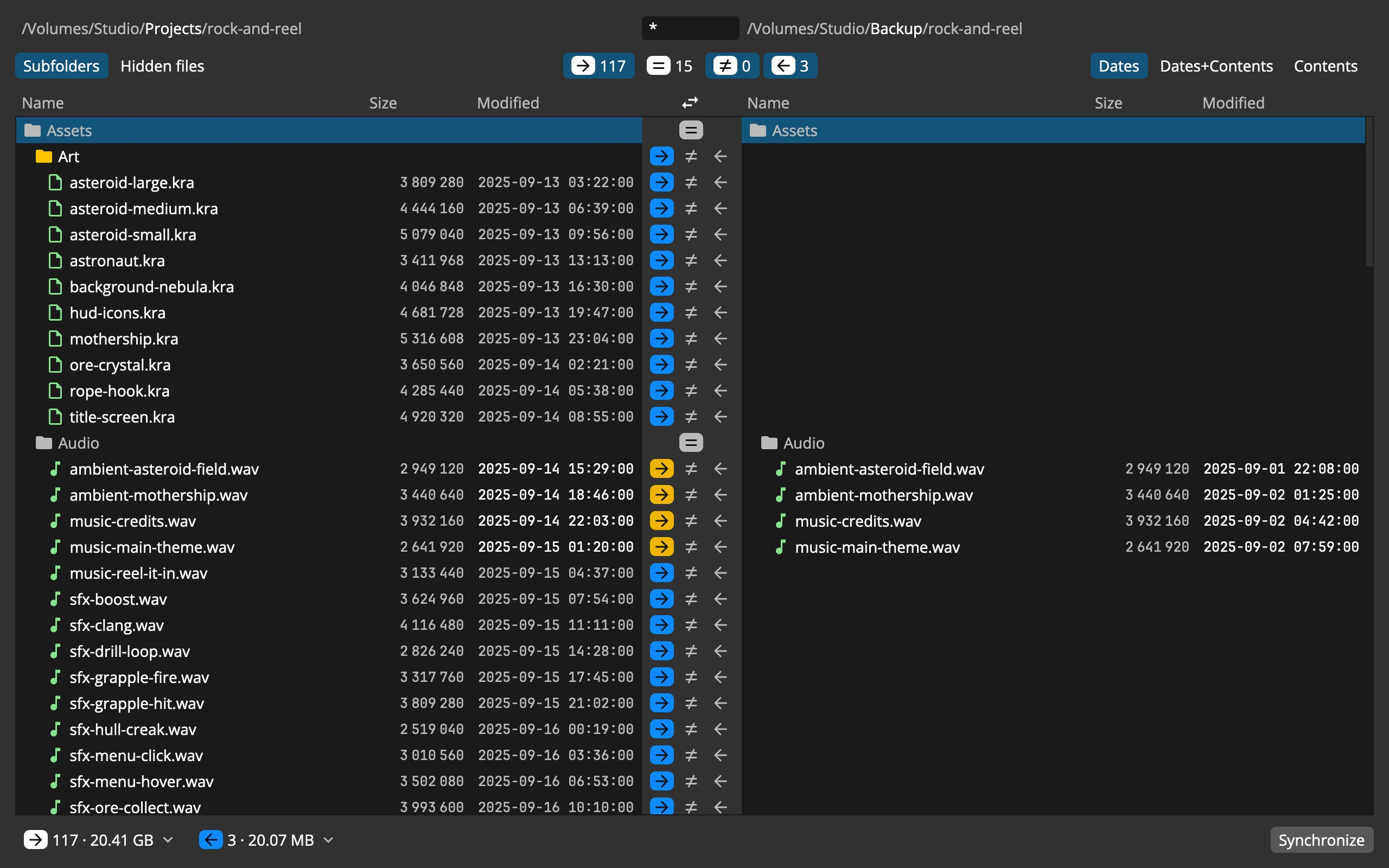 123456789101112
- 1The two folders: the part of the path that differs stands out
- 2Mask: which files take part, such as *.wav
- 3Subfolders and Hidden files
- 4Filter: which rows are shown, and so which rows run
- 5Criteria: Dates, Dates+Contents or Contents
- 6The left folder: as a tree, always fully open
- 7The lanes: the left wins, the same or different, the right wins
- 8Swap the Sides
- 9The right folder
- 10Written over: yellow: the newer file replaces the older one
- 11What will happen: a chip per kind of change, with counts and sizes
- 12Synchronize
How two folders are compared
Items are paired by their path inside each folder. Then the criterion decides which pairs are the same, and which side is newer:
- Dates, to start with: the newer file wins, and the same date and size is the same file. Dates within 2 seconds count as the same, which covers the FAT sticks that keep times to 2 seconds.
- Dates+Contents: files whose bytes are the same are the same, whatever their dates; where the bytes differ, the newer one wins.
- Contents: only the bytes count. No file is newer, and the dates aren’t shown.
Contents reads both files of every pair of the same size, up to the first byte that differs. On a server, that is a download of both.
A folder on both sides is always the same; its own date doesn’t count. A folder on one side only goes over with everything in it.
Commander proposes: whatever only one side has, or has newer, goes to the other side. Pairs that differ with neither side newer are left for you. It never proposes to remove anything.
The lanes
Each row has three places in the middle column:
| Lane | Means |
|---|---|
| → | The left wins |
| = or ≠ | The same, or different and left as it is |
| ← | The right wins |
An arrow says which side wins, not just “copy”:
- The winner has the item: it is copied over. If the other side has it too, that file is written over: a yellow tag.
- The winner doesn’t have it: the other side’s item is removed: a red tag. So → on a row that only the right has removes it on the right.
A copy onto nothing is blue, and = and ≠ are grey. The same colours mean the same everywhere, on the rows and on the chips.
Some rows can’t take an arrow: a file on one side and a folder of that name on the other, two names that differ only in case, and what lies under a folder that couldn’t be read. They stay as they are.
Changing what a row does
- Click a lane on the row.
- Keys in the table: → the right lane, ← the left lane, Space leave it as it is. Each moves on to the next row, so a long list goes quickly.
- Right-click a row: The left wins, The same, Leave it as it is, The right wins, and Compare Files.
- A folder on one side only: answering it answers everything under it.
To change a whole group at once, click one of the chips at the bottom: The left wins, Leave them as they are or The right wins for every row in it. A choice that would remove even one file is marked red in the menu.
A pair of files opens in Compare Files with a double click, ⇧⌘D or the row’s menu, in the same colours.
The filter is what runs
The four tiles above the middle column, → = ≠ ←, each with its count, show or hide rows by what the comparison found. Synchronize runs only the rows you can see. All but = are on to begin with.
So turning off ← keeps every change on the right side out of the sync: a one-way copy from left to right, with nothing taken from the right.
Subfolders compares the whole tree, or only the two folders’ own files. Hidden files brings in the hidden ones; off, a sync never touches them. The Mask takes one pattern, such as *.wav, and leaves other files out. Commander remembers the criterion, Subfolders and Hidden files for next time.
Synchronize
The chips sum up exactly what will happen, per kind: copies to the right, removals on the right, copies to the left, removals on the left, and what stays undecided, each with its count and size.
Synchronize starts one Sync task in the taskbar. Before that:
- If anything will be removed, the first press only asks: Remove 12 and synchronize? Click Synchronize again with the mouse to go ahead. Enter never answers this question, so a removal can’t happen by an accidental key.
- Overwrites are not asked about. They are the yellow tags you saw.
While it runs, the window stays open and the rows can’t be changed. When it is done, the folders are compared again from scratch, and you can synchronize what is left. Close the window with Esc; a running sync goes on in the taskbar.
What a sync does on disk
- Copies run first, removals last, removing what is inside a folder before the folder.
- Files are written over without asking. Folders that exist on both sides are merged.
- Dates and permissions are kept, so the next comparison finds the pair the same.
- Removals are permanent. They don’t go to the Trash.
- A folder is removed only when it is empty. If something stays in it, such as a row you left undecided, a file the mask left out or a hidden file, its removal fails and says why.
- Symlinks are compared and copied as links, never followed.
Recipes
Back up to a USB stick
- The folder to back up in the left panel, the stick in the right. ⇧⌘S, Dates.
- Turn off the ← tile. Only new and newer files from the left will go to the stick; nothing on the stick is removed.
- For rows marked ≠, use the ≠ chip ▸ The left wins, or turn ≠ off.
- Synchronize. Next time, only what changed goes over.
Make an exact mirror, removals included
- As above, but keep ← on.
- Click the chip of copies to the left ▸ The left wins. Files only on the right turn into red removals, and files newer on the right into yellow overwrites.
- Turn Hidden files on, or the hidden files stay, and the folders that hold them can’t be removed.
- Synchronize, and once more with the mouse to confirm the removals.
Keep two computers in step
The proposal is already two-way: whatever is new or newer on one side goes to the other. Look at ≠ rows in Compare Files and answer them with an arrow.
A file you deleted on one side shows as only on the other, and is proposed for copying back. To delete it there too, answer that row with the opposite arrow (red).
Check that two folders are identical
Choose Contents, turn Subfolders on (and Hidden files if they matter), and turn = off. No changes. The folders match. means nothing differs, byte for byte.
Good to know
- Changes on disk while the window is open aren’t noticed. Toggle Subfolders, edit the mask, or close and open it again to compare afresh.
- Over an FTP server that can’t set dates, an uploaded file takes the time of the upload, and the next comparison by Dates may show it as newer. Dates+Contents settles it.
- Comparing by contents reads every same-size pair whole: on a big folder or a server, that takes time.