Places
Places is Commander’s own screen: your bookmarks, the disks and cloud folders of your computer, your servers and, on a Mac, the Finder’s tags, all in one list. It opens in a panel like any folder, and the same keys work in it.
Getting there
- Go to Places ⌥F1.
- The first step of the path, Commander’s logo.
- Go Up Backspace from the top of a disk. On Windows, the list of drives comes first, then Places.
What it shows
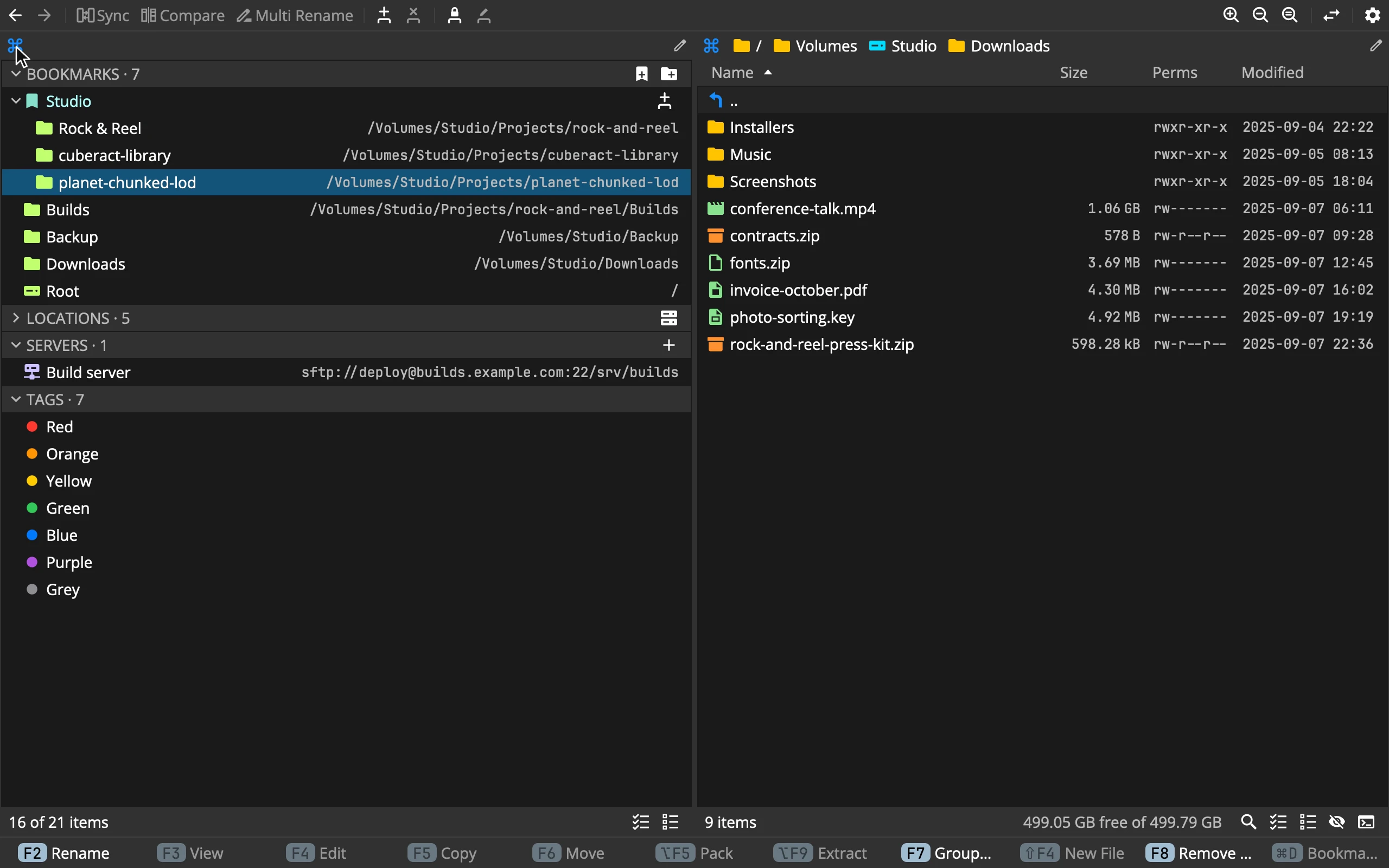 1234567
- 1BOOKMARKS: with buttons for a new bookmark and a new group
- 2A group: bookmarks kept together, folded or open
- 3Bookmarks: the name, and where it leads
- 4LOCATIONS: disks and cloud folders, folded here
- 5SERVERS: FTP, FTPS and SFTP, with a button to add one
- 6TAGS: the Finder's tags, on a Mac
- 7Commands that fit: New Folder reads Group, Trash reads Remove
The sections come in this order: CLIPBOARD (only while the clipboard holds a path), BOOKMARKS, LOCATIONS, SERVERS and, on a Mac, TAGS. Each one folds and opens: ← and → on its header, Enter, or a click on its chevron. Both panels share what is folded, and it stays that way after a restart.
Places keeps the order you give it; clicking a column header doesn’t sort it.
Bookmarks
Add Bookmark ⌘D bookmarks the item under the cursor, wherever you are: a folder, a file, an archive, a folder inside an archive. On .. it bookmarks the folder you are in. The status bar says Added Builds to Bookmarks, or that it is there already.
- A bookmark takes the item’s name. Rename it later with F2; nothing on disk changes.
- A bookmark on a file opens its folder with the cursor on the file.
- A bookmark of a server folder goes into SERVERS.
- The button at the right of the BOOKMARKS header opens Add Bookmark, with a path to fill in (the other panel’s folder to start with) and an optional name.
Moving bookmarks: drag them within their section, or use Move Up ⌥⌘↑ and Move Down ⌥⌘↓. A line shows where a dragged bookmark goes; dropped onto the middle of a group, it goes into the group. This works for servers and locations too.
Removing: F8 reads Remove Bookmark here, and asks first. Only the bookmark goes; the folder it led to stays where it is.
A fresh Commander starts with a few bookmarks: your home folder, Desktop, Documents, Downloads and the other standard folders that exist, and Root (/) on a Mac and on Linux. Root can’t be removed.
Groups
Groups keep bookmarks together, and groups can hold groups.
- F7 on Places reads Group…: type the name in the new row and press Enter. The header’s New group button does the same.
- The button at the right end of a group’s row, Open All as Tabs, opens every bookmark in it as a tab of its own.
- F8 on a group asks Remove group “Studio”? What is in it stays.: the bookmarks move up a level. ⇧F8, Remove with Contents, removes the group with its bookmarks.
Dropping onto Places
Drop files or folders onto Places, onto its step in the path, or onto a tab showing it, and they become bookmarks. Nothing is copied or moved; the drag says bookmark. Dropped into the list, they land where you let go. Drags from the Finder and Explorer work too.
Locations
LOCATIONS lists what the system has mounted. A disk you plug in appears by itself within two seconds, with its free space beside it.
- On a Mac: every disk the Finder shows, and the cloud folders: iCloud Drive, Dropbox, Google Drive, OneDrive and the others macOS keeps in
~/Library/CloudStorage. - On Windows: the drive letters with their labels, and the OneDrive folders. A network share
\\server\shareisn’t listed; type it with Edit Path ⌘L, and bookmark it. - On Linux: disks under
/media,/mntand/run/media, and the shares your file manager mounted.
The switch on the header shows the system’s own mounts as well. F8 on a disk reads Unmount and asks first; a cloud folder and a system mount can’t be unmounted, and on Windows Unmount isn’t available.
Servers
SERVERS holds your FTP, FTPS and SFTP servers. The + on the header opens New server:
- Type: SFTP, FTPS or FTP. For SFTP, Use ~/.ssh/config fills the fields from a host you have there.
- Host, Port, Path (the folder it opens in), User and Password.
- SSH key for SFTP: left empty, the SSH agent is asked first, then
~/.ssh/id_*. - TLS for FTPS (Explicit or Implicit) and Transfer mode for FTP and FTPS (Passive or Active).
- Test connection tries it; Add to Bookmarks saves it.
Enter on a server connects. A password asked for in the status bar is saved once the server accepts it: on a Mac in the keychain (or in the settings file, as Preferences ▸ Data chooses), on Windows and Linux sealed in Commander’s settings so that only this computer can read it. Detail ⌘I on a server shows how it is set up, and Edit… changes it.
A server whose certificate or key Commander doesn’t know yet shows it first, with its fingerprint, and connects once you click Trust.
Tags
On a Mac, TAGS lists the Finder’s tags in the Finder’s order, then every other tag on your files.
- Enter on a tag searches the whole disk for files with it. Select several tags for files with any of them; a switch in the status bar changes that to files with every one.
- F2 renames a tag, the Colour menu changes its colour, and F8, Delete Tag, takes it off every file. Each of these changes every file that has the tag.
- Tags are set on a file in its Detail window, and the Tags column shows them in a panel.
Only what Spotlight indexes is found: not on disks with indexing off, not on shares.
The clipboard row
While the clipboard holds a path, CLIPBOARD shows it in a row of its own. Enter goes there, the same as Go to the Path on the Clipboard ⇧⌘G.
Where bookmarks are kept
In places.properties in Commander’s settings folder: ~/.cuberact/commander/ on a Mac and Linux, %APPDATA%\Cuberact\Commander\ on Windows.