Compare Files
Compare Files ⇧⌘D shows two files side by side, with the lines that differ marked and the words that differ within them, the text in its language’s colours. What didn’t change folds away. The same window shows a file at two of its revisions in git: see Git History.
Choosing the two files
Compare Files takes the selection, never the cursor:
- Two files selected in one panel, or
- one selected in each panel: the left panel’s file goes on the left.
Files inside archives, on servers and in search results work too. A folder is refused: A folder has nothing to compare. A symlink to a file is compared as that file.
The window
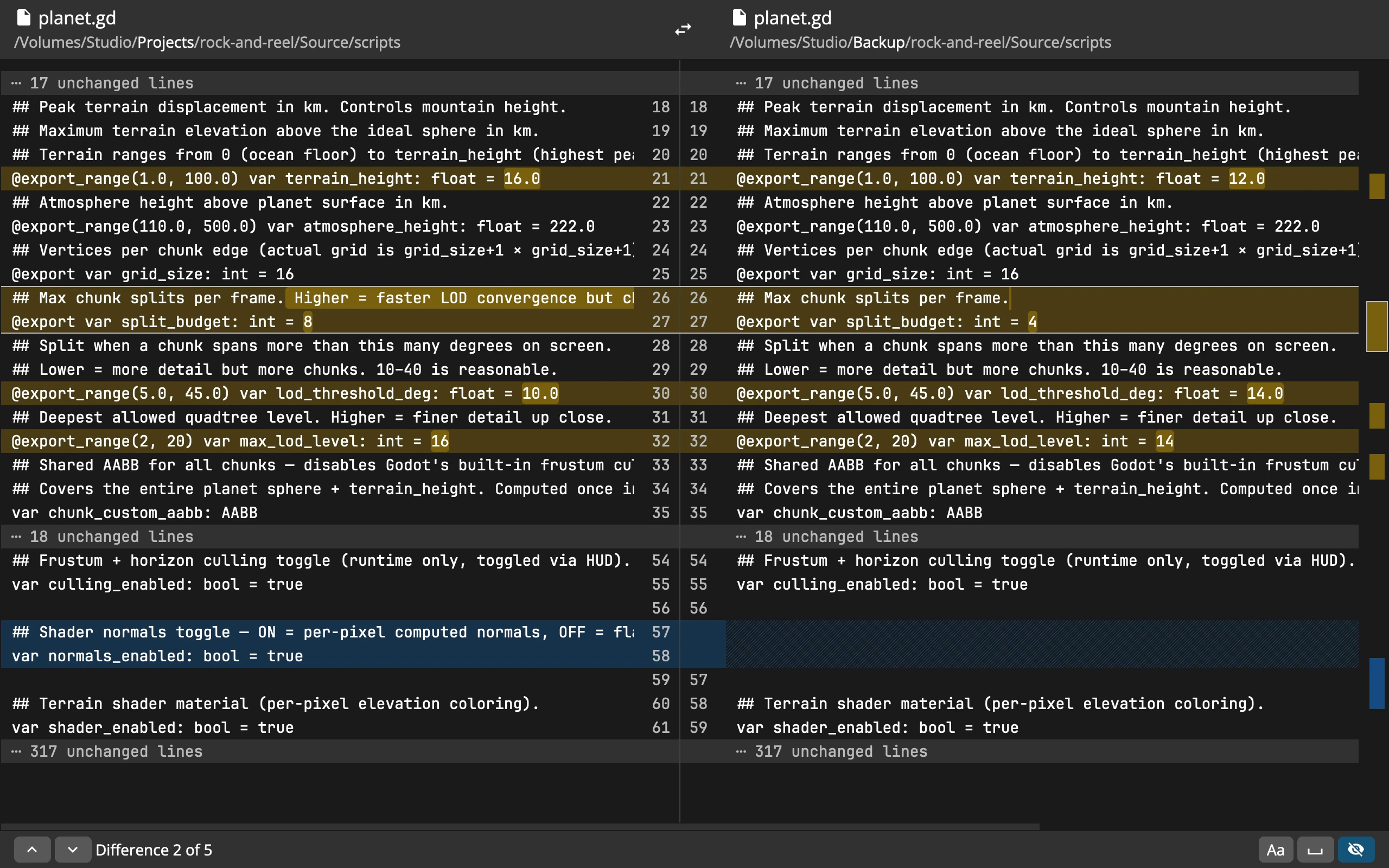 123456789
- 1The two files: the part of the folder that differs stands out
- 2Swap the Sides
- 3Folded lines: click one to open it
- 4A changed line: the words that differ stronger
- 5Lines on one side only: blue, a hatch on the other side
- 6Line numbers: of both files
- 7Overview: every difference; click to go there
- 8Differences: previous, next, and which one of how many
- 9Switches: Ignore Case, Ignore Whitespace, Fold Unchanged Lines
- Yellow: a line both files have, but differently. The words that differ are a stronger yellow, and a small mark shows where the other file has words this one lacks.
- Blue: a line only one file has, facing a hatch on the other side.
- The two sides scroll together, sideways too. Lines don’t wrap.
- The strip on the right marks every difference; click near a mark to go there.
The header shows each file’s name and folder. Where the two folders share a beginning, it is grey, so the part that differs stands out.
Moving between differences
The window opens at the first difference.
| Key | What it does |
|---|---|
| F7 or ⇧↓ | Next Difference |
| ⇧F7 or ⇧↑ | Previous Difference |
| U | Fold Unchanged Lines, on or off |
| W | Ignore Whitespace |
| C | Ignore Case |
| S | Syntax Highlighting |
| ⌘U | Swap the Sides |
| ⌥↓ ⌥↑ | Older and Newer Revisions, in Git History |
| ⌘F | Find |
| ⌘G ⇧⌘G | Next and Previous Match |
| ⌘C | Copy the selected text |
| Esc | Close the find bar, then the window |
The bottom line says Difference 2 of 5, or No differences.
Folding
Unchanged runs fold into one line, ⋯ 17 unchanged lines, keeping three lines on each side of every difference. Click a folded line to open it. U turns folding off and on again; on again, every fold closes.
Syntax highlighting
Syntax Highlighting S, the at the end of the bottom line, colours each file by its language, the way the viewer does, a language you picked in the viewer for a kind of file included. The differences keep their yellow and blue under the colours. It stays as you leave it, for the next window too. A file in no language the viewer knows, and binary files, stay plain.
Ignoring whitespace and case
Ignore Whitespace leaves every space and tab out of the comparison, and Ignore Case treats capitals and small letters as the same. Both compare again at once, without reading the files again. They stay as you left them for the next pair while the window is open.
Find and copy
Find ⌘F searches both files, with Aa for case and .* for regular expressions. It shows how many matches there are, and a match inside a fold opens it. Select text on one side with the mouse and copy it with ⌘C, exactly as the file has it.
What the bottom line tells you
Besides the differences, the bottom line notes what isn’t visible in the lines themselves:
- Encodings differ: UTF-8 on the left, Windows-1250? on the right. A question mark means the encoding was guessed.
- Line endings differ: CRLF on the left, LF on the right. Line endings are left out of the comparison, so a file whose line endings went from CRLF to LF shows no differences, only this note.
- No newline at the end of the left file.
- That only part of a file was read, when it is very large.
Binary files
If either file isn’t text, both are compared byte by byte, as hex side by side, 16 bytes to a row, with the differing bytes marked. Two identical files say Binary files, identical.
Limits
- Up to 256 MB of each file is read from your disks and archives, and 16 MB from a server.
- Up to 50,000 lines of each file are compared.
When a limit cuts in, the bottom line says so.
From Sync
In Compare and Synchronize, a double click on a row with a file on each side opens the two in Compare Files, and so do ⇧⌘D and the row’s menu.
Good to know
- There is one Compare Files window. Comparing another pair replaces what it shows.
- Compare Files doesn’t edit, and doesn’t follow changes to the files. Run it again to compare the files as they are now.
- Tabs, trailing spaces and invisible characters count as differences, unless Ignore Whitespace is on.