Copy, move and delete
Copy and move
Copy to Other Panel F5 and Move to Other Panel F6 take the selection, or the item under the cursor, into the folder of the other panel. They start at once, with no dialog, and run as a task in the background while you keep working. Start another one whenever you like.
Once a copy has started, its items are deselected, so the next selection starts clean.
What a copy takes along
- Folders with everything in them, empty folders included.
- Hidden and system files, always. The eye in the status bar only changes what you see.
- Symlinks as symlinks. A link is never followed, so a copy never pulls in what it points to.
- The modification date of every file and folder, and between your disks on a Mac and on Windows the creation date too.
- Permissions on a Mac and on Linux. A disk that can’t hold them, such as a FAT stick, doesn’t fail the copy.
- On a Mac, between your disks: the extended attributes, which hold the Finder’s tags, where a file was downloaded from and the like. On a FAT or exFAT stick, macOS keeps them in the
._files beside each file.
Sockets, pipes and devices are skipped. Copying a folder into itself is skipped too: the destination is inside it.
When a name is taken
A name already taken at the destination doesn’t stop the copy. That one item waits with exists in the task’s window, and everything else carries on.
- Overwrite replaces the existing item.
- Keep both copies it under a new name:
a.txtbecomesa copy.txt, thena copy 2.txt. The extension stays at the end:a copy.tar.gz. - Skip leaves it out.
Overwrite all, Keep both for all and Skip all answer every name taken from then on in that task. A second click lets the answer go, and the next taken name asks again.
A folder copied onto a folder of the same name merges into it: only the files inside that are taken ask.
Tip: With Open the task window on (Preferences ▸ Taskbar, on to start with), a task you just started opens its window by itself the moment it needs you.
The task window
A click on a task’s tile in the taskbar opens its window. It lists every item and what happened to it.
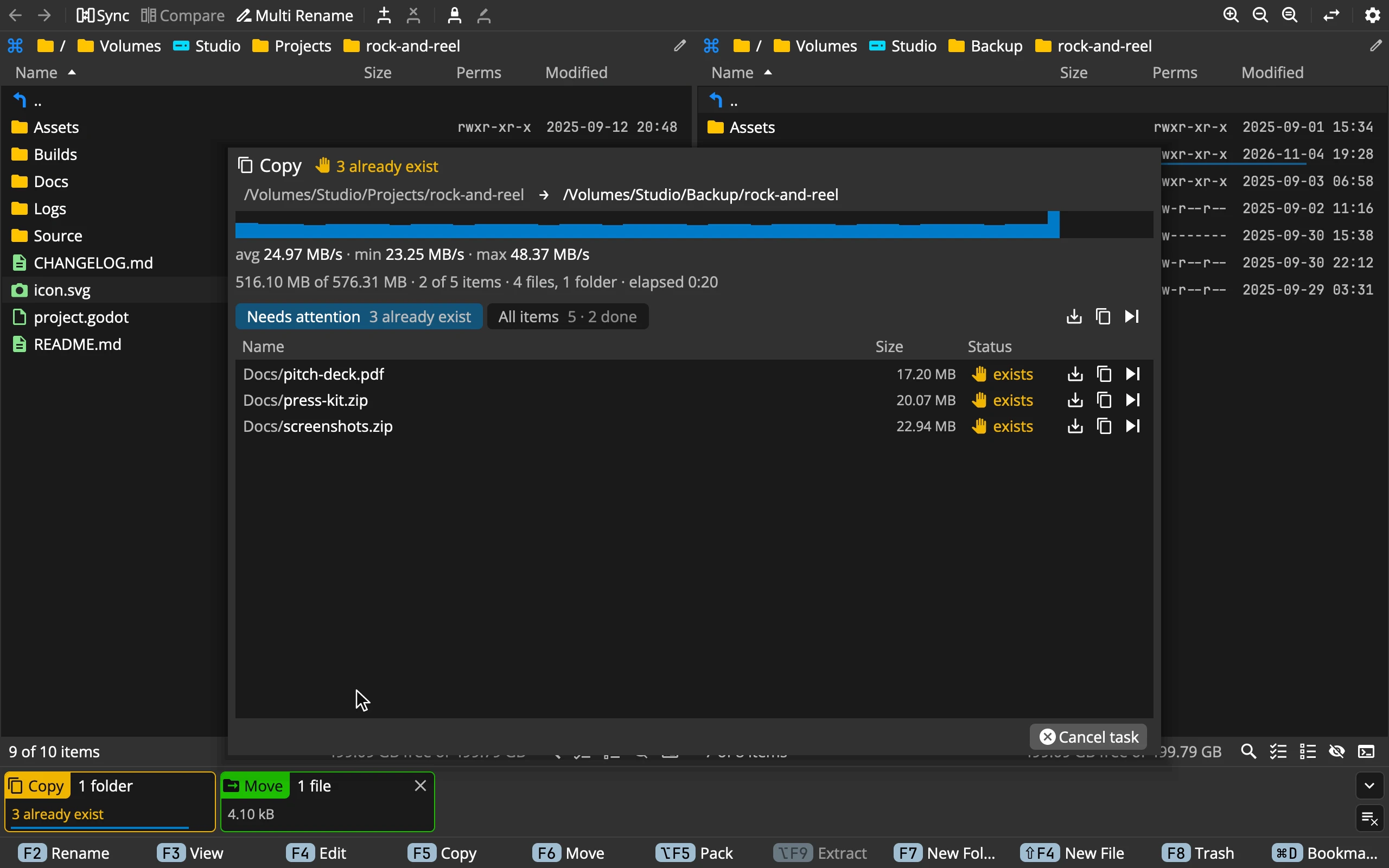 123456789
- 1The task: its kind, its state, and where from and to
- 2Progress: the bar is a graph of the speed
- 3Numbers: speed, how much, how many, how long
- 4Needs attention / All items: what waits for you, or everything
- 5Answers for all: Overwrite all, Keep both for all, Skip all
- 6The items: each with its size and state
- 7Answers for one: Overwrite, Keep both, Skip
- 8Cancel task: keeps what has arrived
- 9Its tile: in the taskbar, in the colour of its state
- The state reads 42 %, 3 already exist, done, 2 failed, skipped or cancelled. Click the from or to address to open it in the active panel.
- Each item is queued, in progress, done in green, exists waiting for you, skipped in grey or failed in red. Point at a word for the reason.
- Double-click an item to open where it is now: at the destination once done, at the source otherwise.
- Cancel task removes the file it was writing and keeps everything already finished. A cancelled copy is a partial copy.
- Remove task, once it is over, takes it off the taskbar. Nothing on disk changes.
Esc closes the window; the task goes on.
When something fails
A file that can’t be read, a disk that is full, a file that disappeared: the item turns red with the reason, Failed: writing: the disk is full, and the task goes on with the rest. A file left half-written is removed.
When the task is over, Retry failed items tries all of them again, or Retry on a single item. Commander doesn’t check the free space before it starts; it tells you when the disk is full.
Moving
- On the same disk, a move is a rename: instant, however big the folder.
- To another disk, an archive or a server, a move copies first and removes each original only once its copy is complete. A folder is removed last, and only when it’s empty.
- Skip leaves the original where it is, and so does a failure.
- A file that changed after its copy began stays where it was: it changed after it was copied.
A move between disks removes the originals as it goes. Cancel it halfway and the folder is split between the two places, which the task window shows item by item.
Archives and servers
- Out of any archive: copying works from every format Commander reads. Moving out works from a zip.
- Into a zip: copy, move, paste and new items all work. Every change rewrites the whole archive, so Commander asks first: This rewrites photos.zip (1.2 GB). Continue? The file on disk is always either the old archive or the new one, never half of each.
- Into other archives: refused, A tar is read-only, RAR is read-only. Pack makes new 7z and tar.gz archives.
- Servers: FTP, FTPS and SFTP all read and write. SFTP keeps permissions and dates; FTP keeps the date where the server allows it.
- A symlink can’t go to an FTP server or into a zip: the destination cannot create symlinks.
The clipboard
- Copy Files ⌘C and Cut Files ⌘X put the items on the clipboard. On a Mac and on Windows, files from your disks go on the system’s clipboard too, so you can paste them in the Finder or Explorer.
- Cut moves nothing yet. The items fade until you paste, and the paste moves them.
- Paste ⌘V copies into the active panel’s folder, or moves if you cut. Pasting into the folder the items came from makes copies at once:
name copy. - Move Here ⌥⌘V moves whatever is on the clipboard, also after a plain copy.
- Files copied in the Finder or Explorer paste in Commander too.
The right-click menu’s Clipboard puts text on the clipboard: Copy Names, Copy Full Paths ⇧⌘C, Copy Relative Paths and Copy as Table, one line per item.
A cut and other apps: the Finder pastes Commander’s cut as a copy, Explorer and Commander understand each other’s cut, and on Linux a cut works within Commander.
Trash and delete
| Command | Keys | What it does |
|---|---|---|
| Move to Trash | F8 or ⌦ | Into the system’s trash, from where it can come back |
| Delete Permanently | ⇧F8 or ⇧⌦ | Gone for good |
Both ask first: Move 3 items to Trash? on a yellow band, Delete 3 items permanently? on a red one. Enter agrees, Esc doesn’t, and the items in question are tinted meanwhile. Preferences ▸ Confirmations ▸ Confirm before delete switches the question off.
- Only your own disks have a trash. In an archive or on a server, Move to Trash is refused (This source has no trash), and so it is on a network share. Delete Permanently works there, in a zip and on servers.
- Move to Trash never deletes for good. Where there is no trash, it says so and does nothing.
- A symlink goes to the trash as a link. What it points to stays.
- On a Mac, the trash goes through the Finder, so that the Finder’s Put Back works. macOS asks once whether Commander may control the Finder.
A finished trash task offers Put back on every item, and Put back all, in its window. An item whose old name is taken again stays in the trash and says why.
New folder, file and symlink
| Command | Keys | Makes |
|---|---|---|
| New Folder | F7 | An empty folder |
| New File | ⇧F4 | An empty file |
| New Symlink | ⇧F7 | A link to the item under the other panel’s cursor |
A new row opens under ..: type the name and press Enter, or Esc to change your mind. The cursor lands on the new item. One name at a time: a/b/c is refused. A new symlink is named after what it points to, and works only between two folders on your disks.
Many tasks at once
Tasks run side by side, each on its own. The taskbar shows them as tiles, or as one line when folded; see The window. On a Mac, the Dock icon shows the tasks waiting for you and the progress.
Quitting while tasks run asks first, and lists them: Commander can quit when they are done, or Cancel all tasks and quit now.
If Commander ever ends unexpectedly, the next start lists the tasks that were left unfinished, since the file each was writing may be incomplete.
Tips
- Finish an interrupted copy: copy again and choose Skip all. Only what is missing gets copied.
- Duplicate a file in place: Copy Files, then Paste in the same folder.
- Copy paths for an email or a terminal: Copy Full Paths ⇧⌘C.
- Big copy, other work: start it and forget it. Questions wait in the task window, and the Dock or the taskbar tells you when it needs you.