Detail
Detail ⌘I (or ⌥Enter) opens a window with everything Commander knows about the item under the cursor: what it is, how big, when it changed, who may read it, and what a picture, a song or a program says about itself. On a file on your disk it also computes checksums, sets permissions, dates and tags, and chooses the app that opens it.
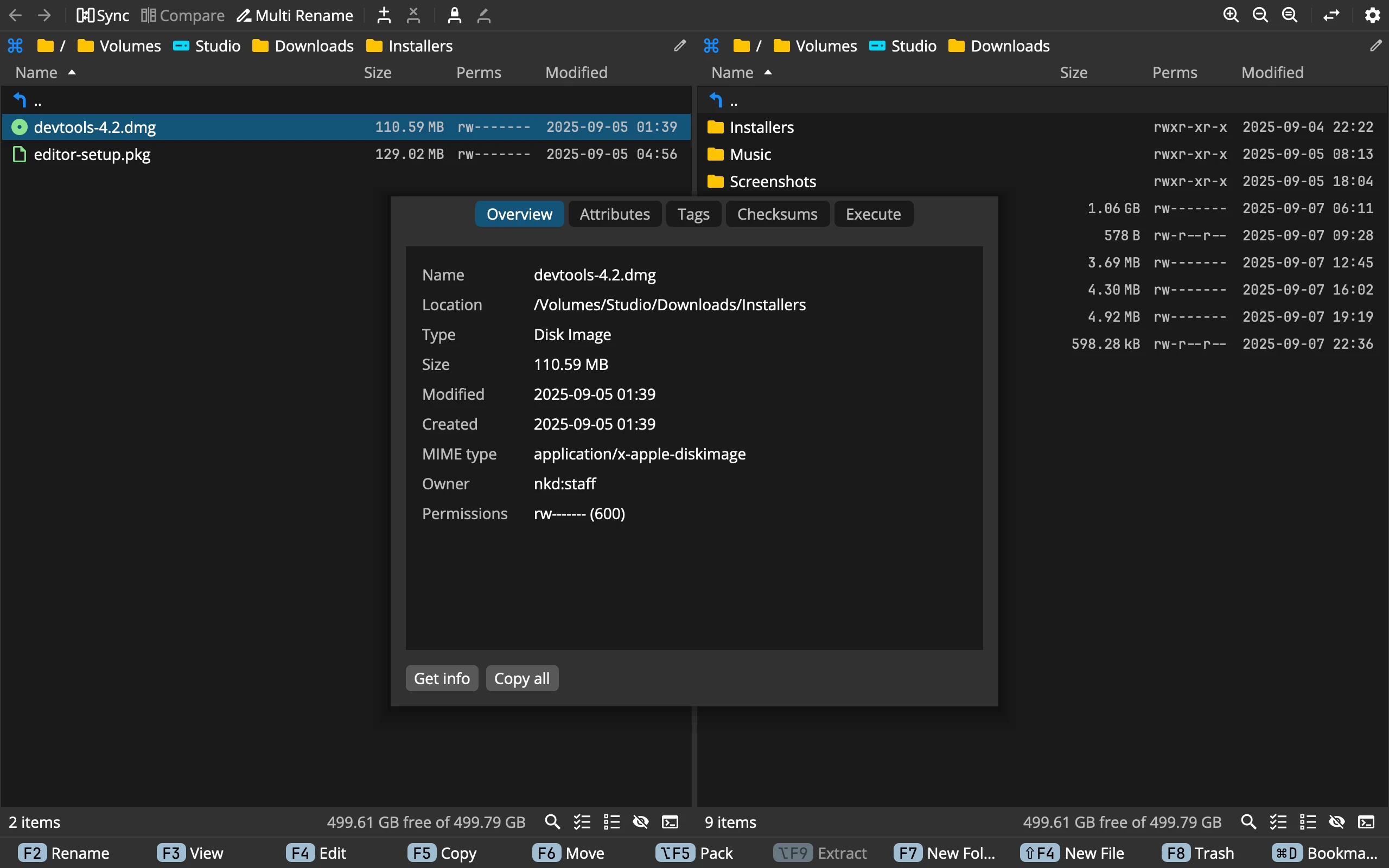 123
- 1Pages: Overview, the media page, Attributes, Tags, Checksums, Execute
- 2The facts: only rows that have a value; point at one to copy it
- 3Get info and Copy all: the Finder's own window, or the page as text
The window
- Detail works on the cursor. Each item gets a window of its own, so you can keep several open side by side; the same item from both panels is one window.
- The window stays open and keeps up with its item: a folder size that arrives later, or a new modified date, shows by itself.
- It closes when its panel leaves the folder. If the item is deleted or renamed, the window keeps what it last knew.
- Esc closes it. Its size is remembered.
- Copy all copies the page as
label: valuelines. On a Mac, Get info opens the Finder’s own information window.
Overview
The Overview shows only the rows that have a value:
- Name, Location, Type, Size, Modified and Created.
- Owner and Permissions, such as
rw-r--r-- (644), on a Mac and on Linux. - MIME type, on a Mac.
- Links to for a symlink, with missing when what it points to is gone, and a button to go to it.
- Archive for an archive and the items inside it, with encrypted when it has a password.
- For a folder, Compute size counts it, the same as Compute Size ⌘Enter.
- For a disk: Mounted from, Filesystem and Capacity.
Point at any row and a copy button shows beside it.
On Places, Detail shows a bookmark’s target, or a server’s whole setup without its password, with Edit… to change it.
What a file says about itself
For a file on your disk, a page named after its kind shows what the file holds inside. Commander reads only the headers, on the side, and recognises the kind by its content, not by its name.
| Page | Formats | What it shows |
|---|---|---|
| Image | The formats the viewer shows, HEIC, AVIF and camera raw files | Dimensions, megapixels, colour and colour profile, and from Exif the camera, lens, date taken, exposure, aperture, ISO, focal length, flash, location and altitude |
| Video | MP4, MOV, M4V, 3GP, Matroska, WebM | Duration, resolution, frame rate, codec, bit rate, each audio track, the date recorded, the device and location |
| Audio | MP3, AAC, ALAC, AIFF, FLAC, Opus, Ogg Vorbis, WAV, WavPack and more | Duration, bit rate, sample rate, bit depth, channels, and the title, artist, album, track, year and genre |
| Version, pages, whether it is encrypted, title, author, subject, keywords, creator and dates | ||
| Font | TrueType, OpenType, collections | Family, style, version, weight, variable axes, monospaced, glyphs, designer, maker and licence |
| Program | Mach-O, ELF, PE (Windows) | Kind, architectures, minimum system, SDK, .NET |
| Application | A Mac app | Name, identifier, version, build, minimum system, architectures and copyright |
Attributes
Here you change who may read, change and run the item, and its dates, on your disk and over SFTP.
- The permission grid: Owner, Group and Other, each with r, w and x. A click changes it on disk at once.
- Octal: the same as a number, such as
644. - Modified, and on a Mac Created: type a date in your date format and press Enter.
2026-09-16 21:07:14always works.
There is no Apply: a change is written as you make it. A date only half typed is never written, and a change the system refuses goes back, with the reason in red. Restore, once anything changed, puts back the permissions and dates the item had when the window opened.
Symlinks have no Attributes page, since a change would land on what they point to.
Tags
On a Mac, the Tags page lists your tags; a click puts one on the item or takes it off. New tag with a Colour adds a tag of your own. Tags are written at once, and a tag you remove stays in the list so you can put it back.
Checksums
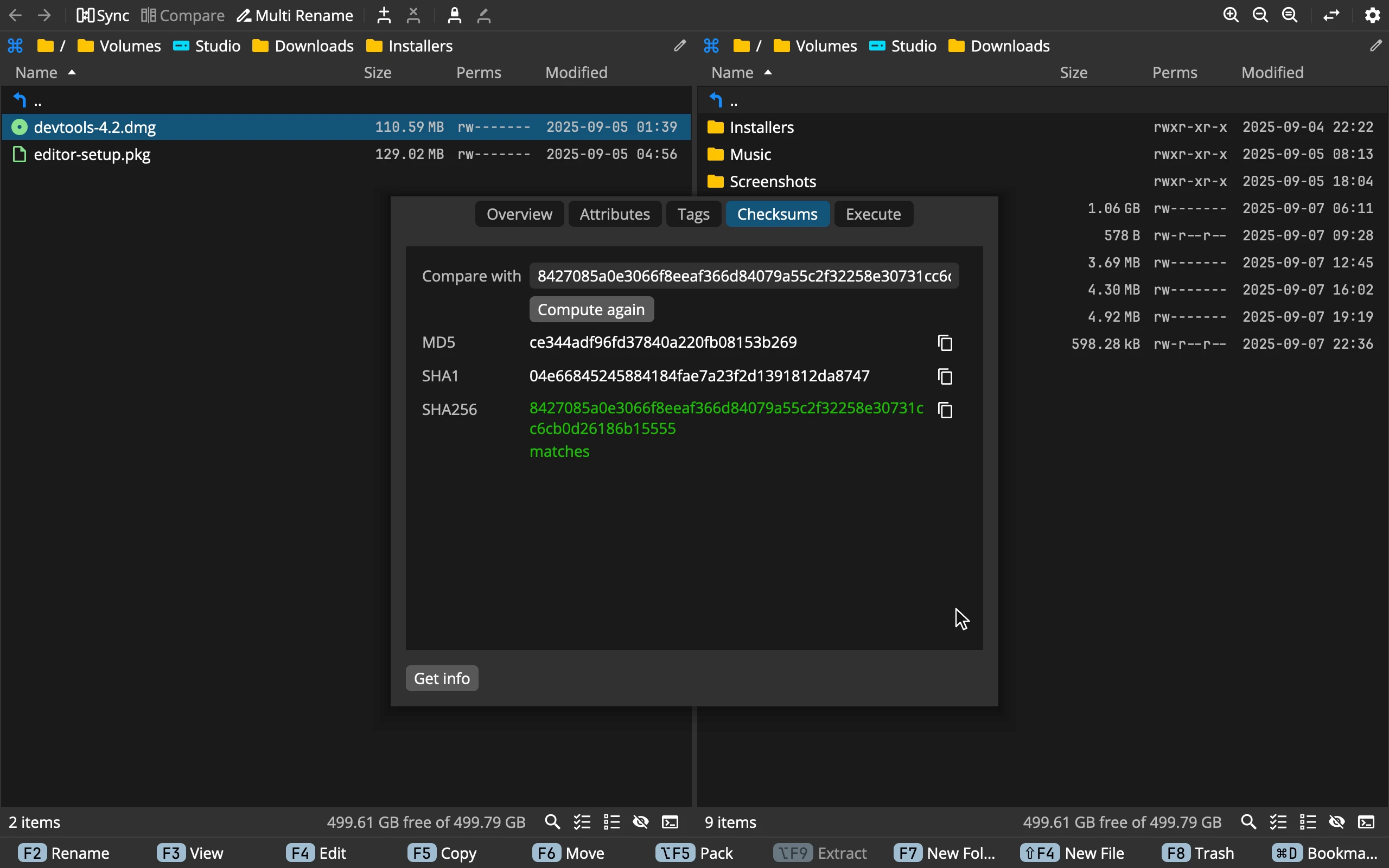 1234
- 1Compare with: paste the checksum the publisher gives
- 2Compute: reads the file once for all three
- 3The sums: green with matches, or red with does not match
- 4Copy: one sum to the clipboard
Compute reads the file once and gives its MD5, SHA1 and SHA256. A big file shows its progress and can be cancelled.
To check a download, paste the checksum from the publisher’s page into Compare with, before or after computing. Its length tells which kind it is, and the matching row turns green with matches, or red with does not match. Only the bare checksum works, not a line with the file’s name after it.
If the file changes, its sums are dropped and you compute them again.
Execute
Execute chooses the app Enter opens this file in: for this file alone, for the extension in this folder, for the extension everywhere, or for all pictures. Each row has a menu of apps: the system’s default, the apps the system offers, or Other application…. For pictures, the Viewer is one of them. The row that decides is highlighted, and a choice is saved at once. The same rules are in Preferences ▸ Execution.
What works where
- Overview: everywhere, also inside archives, on servers and in search results.
- The media page, Checksums and Execute: files on your disk.
- Attributes: your disk and SFTP on a Mac and on Linux; on Windows, SFTP only.
- Tags, Get info and the Application page: on a Mac.