Viewer
View F3 opens the file under the cursor in the viewer: text and code in colour, Markdown as a page, pictures, and the bytes of anything. It reads files on your disk, inside any archive and on servers, without unpacking or downloading them first.
Opening a file
- F3 works on the cursor, whatever is selected. A folder has nothing to view.
- Enter on a picture opens it in the viewer too (Preferences ▸ Execution ▸ All pictures, the viewer to start with). This works inside archives and on servers as well.
- There is one viewer window. F3 on another file shows that one in it. Its place and size are remembered.
- Esc (or F3) closes the find bar first, then leaves full screen, then closes the window.
The viewer opens at once and says reading… until the file arrives.
The tabs
The viewer has three tabs at the top right: Text, Hex, and Image, which is Preview for a Markdown file. It picks one for each file:
- a picture opens on Image,
- a Markdown file on Preview,
- a file that looks binary on Hex,
- everything else on Text.
Click a tab, or step through them with ⌃Tab or ⇧⌘] and back with ⌃⇧Tab or ⇧⌘[, to see the file another way, for example the bytes of a text. The choice holds for that file; the next one picks again.
Text
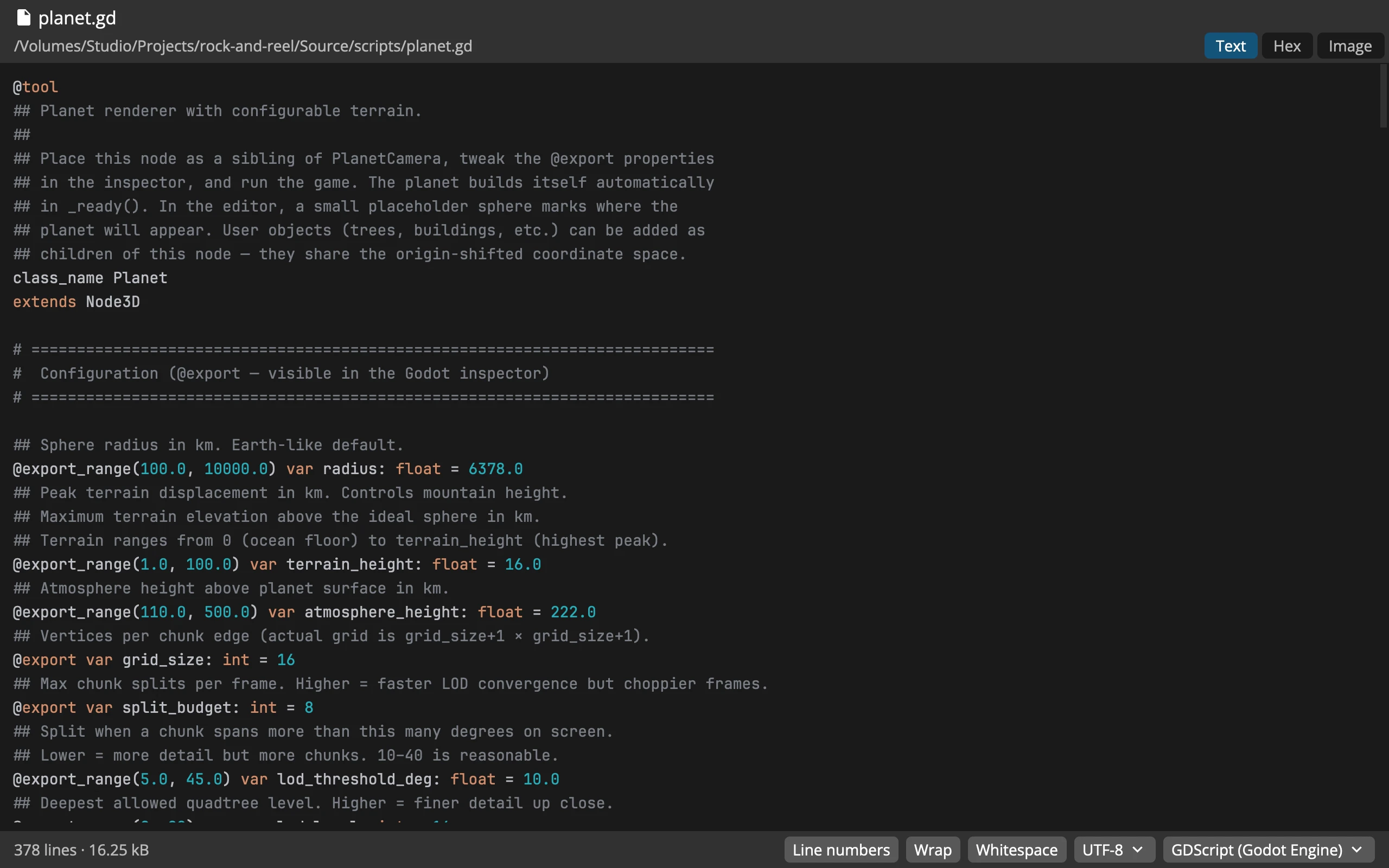 1234567
- 1The file: its name and full path
- 2Tabs: Text, Hex, and Image or Preview
- 3The text: coloured by its language
- 4Lines and size
- 5Switches: Line numbers, Wrap, Whitespace
- 6Encoding: detected, or chosen from the menu
- 7Language: detected, or chosen from the menu
- Line numbers L, Wrap W and Whitespace I are switches in the status bar, the same for every file. Whitespace shows spaces as
·, tabs as→and the end of each line asLForCRLF; copying and searching ignore the marks. - The size of the text follows the app’s zoom: ⌘=, ⌘-, ⌘0, or ⌘ with the wheel.
- Select by dragging, a double click selects a word, ⌘A everything. ⌘C copies the selection, or the whole text when nothing is selected. Line numbers are never copied.
Encodings
The viewer recognises UTF-8 and UTF-16 by their marks, and takes valid UTF-8 as UTF-8. For anything else it guesses, and shows the guess with a question mark, such as Windows-1250?. The encoding’s name in the status bar is a menu: choose one of 38 encodings for that file, from Windows-1250 to Shift_JIS, Big5 and KOI8-R. Type to filter the list.
Large files
The viewer reads up to 256 MB of a file from your disks and archives, and 16 MB from a server. The status bar then says how much of how much, and Read all reads up to about 1 GB. The text shows up to 50,000 lines. Very long lines are broken into pieces of 4,096 characters, and the line numbers mark where a line continues.
Code in colour
The viewer colours code in over 190 languages: C, C++, C#, Java, Kotlin, Rust, Go, Python, JavaScript, TypeScript, PHP, Ruby, Swift, SQL, HTML, CSS, XML, JSON, YAML, TOML, Markdown, shell, PowerShell, Dockerfile, GDScript and many more.
- The language comes from the file’s name (
Makefile), its extension, or its first line (#!/bin/sh). - The language’s name in the status bar is a menu: choose another, or Plain text. Commander remembers the choice for that kind of file, so every
.hopens the same way. Preferences ▸ Viewer ▸ Text ▸ Language by file type lists these choices, each with a × to forget it. - Preferences ▸ Viewer ▸ Text ▸ Syntax highlighting turns colours off altogether. The colours themselves are in Preferences ▸ Theme.
JSON
A JSON file is laid out to be read. Format in the status bar switches between Off, Simple (one value to a line) and Smart (short arrays and objects stay on one line). Only the spaces between values change; the numbers, strings and order are as written, and Hex still shows the file’s own bytes. The default is in Preferences ▸ Viewer ▸ Text ▸ JSON formatting.
Markdown
A Markdown file opens on Preview as a page:
- headings, lists, tables, task lists, footnotes, strikethrough and the coloured Note, Tip and Warning boxes,
- code blocks in colour, each with a Copy button,
- pictures from the file’s own folder, on your disk. Nothing is ever fetched from the internet.
- A link to a heading scrolls there. A web link opens in your browser, and a link to a file opens it in the viewer.
Reading column C keeps the text to a comfortable width. Text shows the Markdown source, coloured.
Pictures
The viewer shows these formats, recognised by their content:
| Everyday | PNG, JPEG, GIF, WebP, SVG, BMP, TIFF |
| Animated | GIF, animated PNG, animated WebP |
| Icons | ICO, CUR, ICNS, with all their sizes |
| More | JPEG XL, OpenEXR, Radiance HDR, QOI, TGA, PNM, Farbfeld |
HEIC, AVIF, Photoshop and camera raw files don’t show as pictures; they open in Hex. Their dimensions, camera and the like are in Detail.
| Key | What it does |
|---|---|
| ← → | Previous and Next Picture in the folder |
| Home End | First and Last Picture |
| 0 | Zoom to Fit |
| 1 | Zoom to 1:1 |
| = - | Zoom in and out |
| Enter or F | Full Screen |
| Space | Play or pause an animation |
| ↑ ↓ | The previous or next size, page or frame |
| N | Smooth When Enlarged |
| R | Raw Pixels at 1:1 |
| ⌦ | Picture to the Trash |
- Stepping goes through the pictures of the folder in the panel’s order, without the hidden ones if the panel hides them. It stops at the ends.
- Zoom with the wheel, no key needed: each notch is a step around the pointer, the picture gliding there, from 5 % to 3200 %. Drag to move around. On a trackpad, pinch to zoom and slide two fingers to move around. ⌥ with any scroll zooms, which is how a Magic Mouse zooms. Every picture starts at Fit, unless Keep zoom between pictures is on.
- 1:1 is the picture’s size on your screen: a
@2xpicture or a Retina icon shows as sharp as it was made. Raw Pixels at 1:1 shows one pixel to one point instead. - Full screen shows the picture on black, with a caption of its place in the folder, zoom, size and name. Esc leaves it.
- Sizes, pages and frames: an icon file opens on its largest size, and the status bar has a menu of all of them. A TIFF can have pages, and an animation frames; stepping a frame pauses the animation.
- Transparent parts show on a checkerboard.
Picture to the Trash ⌦ moves the picture on screen to the Trash and goes on to the next one, without asking: sorting a folder of photos takes one key per photo. Everything trashed while the window is open is one task, with Put back in its window. It works for pictures on your disks.
The settings button in the status bar holds Keep zoom between pictures, Enlarge small pictures to fit, Show name in full screen, Smooth when enlarged and Raw pixels at 1:1, also in Preferences ▸ Viewer ▸ Image.
Hex
Hex shows the bytes: an offset, 16 bytes to a line in two groups of eight, and the same bytes as text, with a dot for anything that isn’t a printable character.
- The cursor is one byte, lit on both sides; click either side to place it. The status bar says where it is and what it holds, such as
0x0000001a (26) 4a = 74 'J'. - ⌘↑ and ⌘↓ go to the start and the end (Ctrl+Home and Ctrl+End on Windows and Linux).
- Find searches the text side, and marks the matches on the bytes.
Find
Find in Text ⌘F opens a find bar in Text, Hex and Preview. Aa matches case and .* takes a regular expression. The bar counts the matches, 3/17.
- Enter finds, and again goes to the next match. ⇧↓ and ⇧↑ go to the next and previous match from anywhere, round and round.
- ↓ in the field brings back earlier searches.
- Esc closes the bar.
Watching a file grow
The viewer reads a file again when it changes, every second or so, while you can see it. Scrolled to the end, it stays at the end as new lines arrive, so a log grows before your eyes. Anywhere else, it keeps your place. A file that is deleted stays on screen with a note; when it comes back, it is read again.
This works for files on your disks and in archives, not on servers. Preferences ▸ Viewer ▸ Read a file again when it changes switches it off.
Other files
Videos, sounds, fonts and programs, and usually PDFs, look binary and open in Hex. The viewer doesn’t play or render them. What they hold inside, such as a video’s length or a PDF’s pages, is in Detail.